Oxford eActivirt Platform

Interactive learning for a new experience!

全方位互動,啟動教學新體驗!

Introduction

Introduction

Coming soon

FAQ

What is Oxford eActivity Platform?
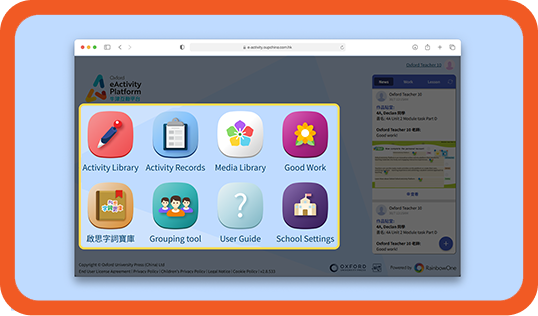
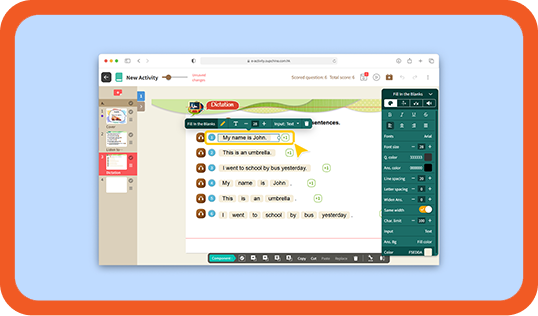
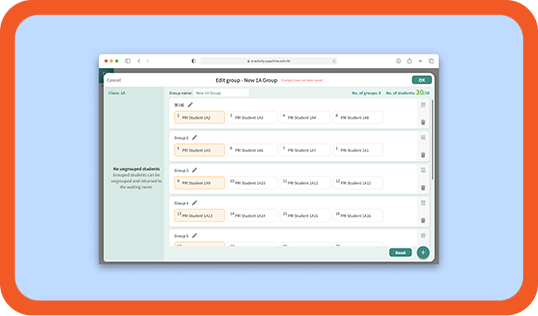
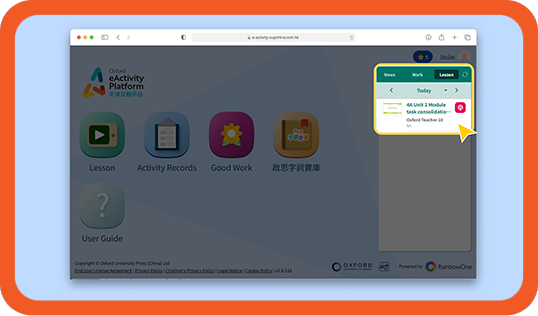
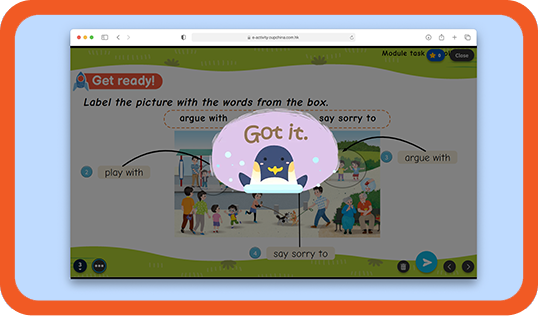
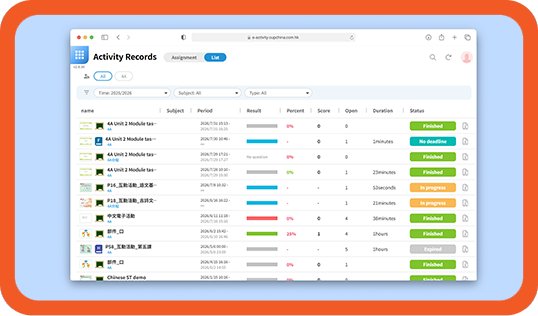
Oxford eActivity Platform is an online activity platform launched by Oxford University Press. It allows teachers to use pre-set learning activities or create their own and conduct interactive classroom sessions to make teaching more collaborative, engaging and student-centred.

Who can use Oxford eActivity Platform?
All teachers and students who have adopted our English or Chinese primary school textbook series can access the platform.

How can I get an account for Oxford eActivity Platform?
Students: Use your Oxford iSolution account to log in to Oxford Reading Planet. Accounts are assigned by your teacher.
Teachers: To create your account, contact the account executive for your area or call the service hotline at (852) 2516 3126.

What should I do if I forget my password ?
Click ‘Forgot/Change your password’ on the login page. Enter the registered email address and submit. Check your inbox for an email titled ‘Reset password for your Oxford account’ and follow the instructions to reset your password.

If your account does not have a registered email address:
Students: Contact your teacher.
Teachers: Contact the account executive for your area or call the service hotline at (852) 2516 3126.

How can I improve the experience of editing activities on a mobile phone?
Activities can be viewed normally on mobile devices. However, due to screen size limitations, the editing experience may be less optimal. For a more convenient and efficient editing process, we recommend using a computer or tablet.

How can I check if students have left the class?
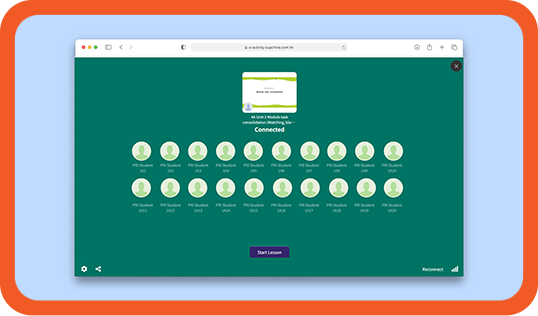
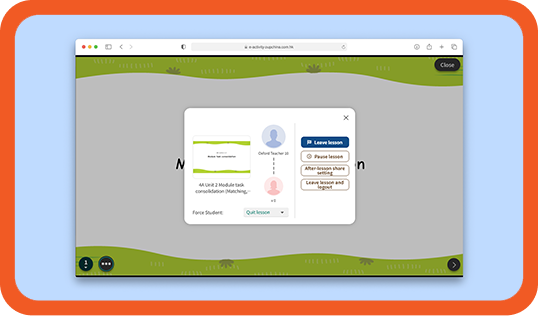
Teachers can click ‘Manage Student’ on the classroom toolbar to view the list of logged-in students and the current number of participants.

What should I do if the connection is lost during class?
Teacher disconnected: Click ‘Reconnect’ or refresh the browser page. If the issue persists, exit the class and log in again. Check your device's network connection.
Student disconnected: Students should click ‘Reload’ or refresh the browser page. Teachers can also click ‘Reconnect’. If the issue persists, exit the class and log in again. Check the device's network connection.

What should I do if the teacher and student screens are not synchronized?
Teachers can click ‘Send status’ on the classroom toolbar to resend the current screen to students. If the issue is caused by disconnection, reconnect and then click ‘Reload’ to ensure synchronization.

How can I grant students access to certain tools during class?
On the classroom toolbar, go to ‘Setting’, select ‘Student’. Choose the tools you want to enable. After confirming, click the selected tool on the classroom toolbar. The tool label will turn blue with a blue dot next to it, indicating that the access is granted.

Can I change the deadline for an assigned activity?
Yes. Teachers can use the ‘Setting’ option within the assigned activity to adjust the activity duration and correction period.

What should I do if the connection is lost during class?
If disconnected, click ‘Reload’ or refresh the browser page. You can also ask the teacher to click ‘Reconnect’. If the issue persists, exit the class and log in again. Check your device's network connection.

What can I do if I miss the submission deadline for an activity?
Late submissions will not be accepted, but you can still read its content. 

System requirements

OS version­­ (or above) Browser version­­ (or above)
Windows 11 24H2 Chrome 140
Edge 140
macOS 12 Monterey Safari 17
Chrome 140
iOS 17/iPadOS 17 Safari 17
Chrome 140
Android 12 Chrome 140

Support

If you need any technical support and have any comments, please contact us.
(Office hours: Mon–Fri / 9 a.m.–5 p.m.)