User guide for teachers


Log in to the Oxford Exercise Platform

By using the browser, users can log in and use the Oxford Exercise Platform on various devices.

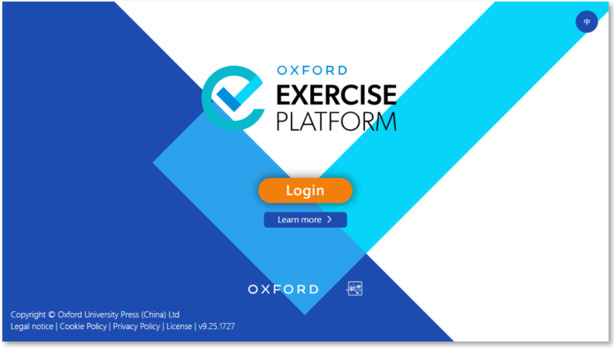
1. Open your browser and go to the Oxford Exercise Platform. Once there, click on the 'Login' button.
 
2. Enter your username and password to log in to the Oxford Exercise Platform. (Please use your Oxford iSolution account to log in)
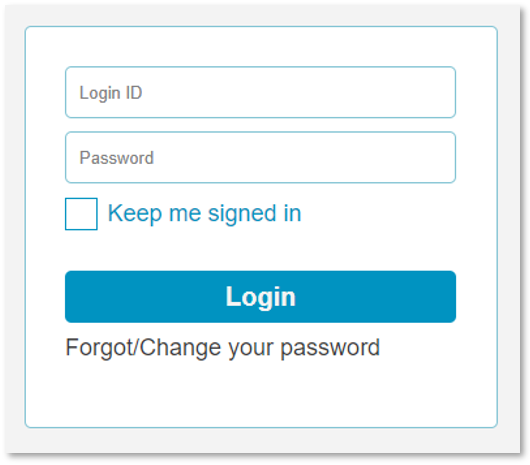
 
3. After successfully logging in to the Oxford Exercise Platform, you will be directed to the user homepage, where you can access the various features and resources available on the platform.
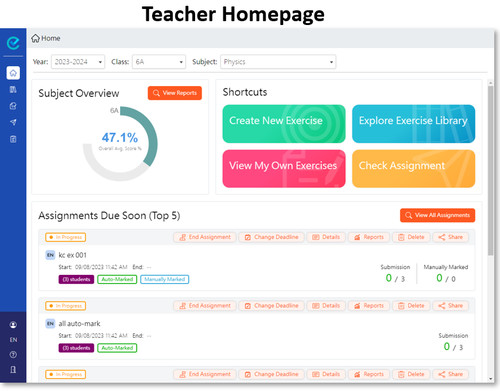


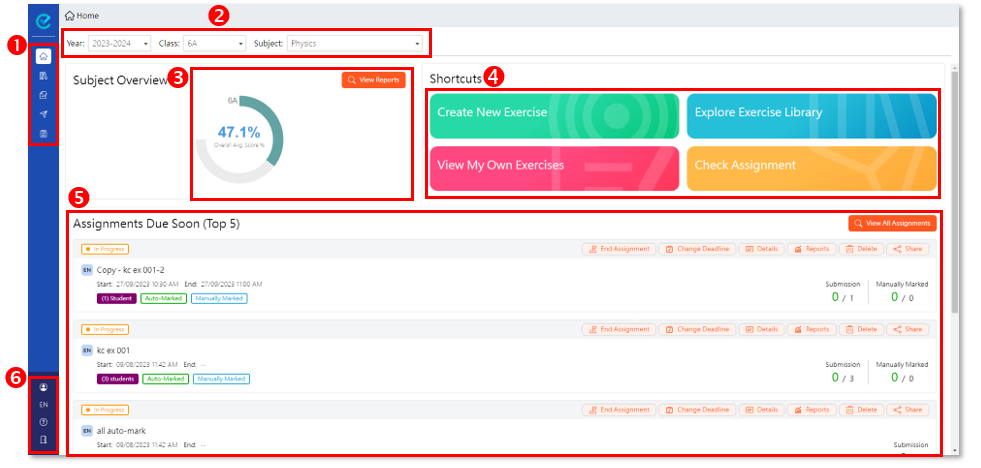
Teacher Homepage

1.
Home :  All exercise and assignment summaries and reminders are displayed here.
  Library :  Find the exercises from the Oxford Exercise Pools and the ones shared by the teachers of your school (School's s Shared Exercises) here. 
  My Exercises :  Find the exercises you created , copied or saved here. 
  Assignments :  Find the assignments status here. 
  Reports :  Access comprehensive reports and analysis of various types of exercises based on the selected Subject, Year, Grade and Class here. (Limited to assignments with published results only)
 
2. Year:
Class:
Subject:

Choose the year, class and subject here to view the corresponding overall average score in the chart in .
 
3. Subject Overview:
A chart based on the selected year, class and subject in  will be displayed here.
To view detailed analysis reports, click  and go to the 'Reports' section.

 
4. A shortcut to creating a new exercise.
 
  A shortcut to 'Library' for viewing the exercises from the Oxford Exercise Pool and the shared exercises from your school.
 
  A shortcut to 'My Exercises' for viewing the exercises owned by teachers.
 
  A shortcut to 'Assignments' for checking the assignments.
 
5. Assignments Due Soon (Top 5) Check here for the top five assignments that are due for submission soon.
 
6.
Find your username here.
  Change the interface language of Oxford Exercise Platform here. 
  Open the User Guide Page here. 
  Log out from the Oxford Exercise Platform here. 


Browse the Oxford Exercise Pools, School's Shared Exercises & My Exercises

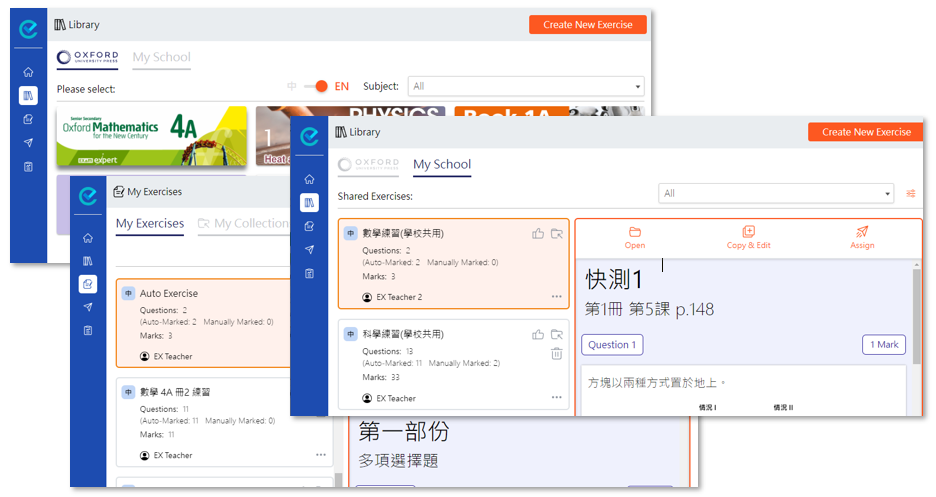
   Oxford Exercises Pools Find the exercises from the Oxford Exercise pools of the series adopted by your school here. Teachers can preview, copy & edit, save or assign them to students.
School's shared Exercises Find the exercises created and shared by teachers from your school here. Teachers can preview, copy, edit, save or assign them to students.
My Exercises Find the exercises you created, copied and saved here. Teachers can preview, edit or assign them to students.
 

Search exercises with filters

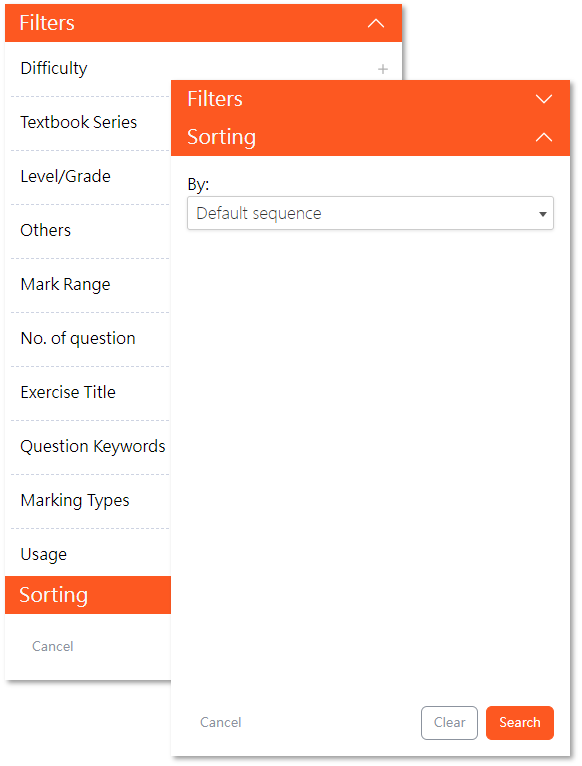
Instead of searching directly in Library, teachers can also use filters to search for specific exercises.

1. Click the 'Filter' buttonin the Exercise Library to open the filter interface.
 
2. After setting the filter conditions, click 'Search' and exercises that match the conditions will be displayed.


Copy & Edit Exercises

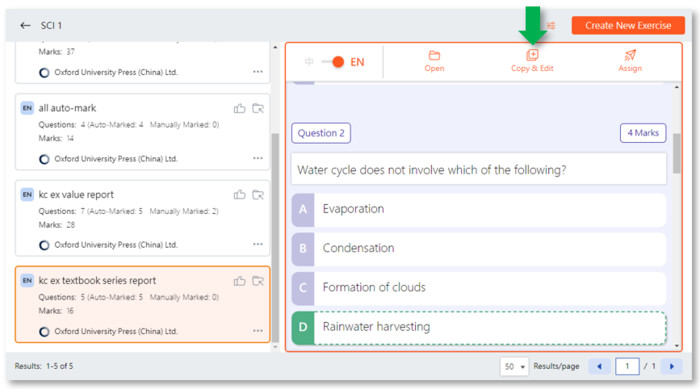
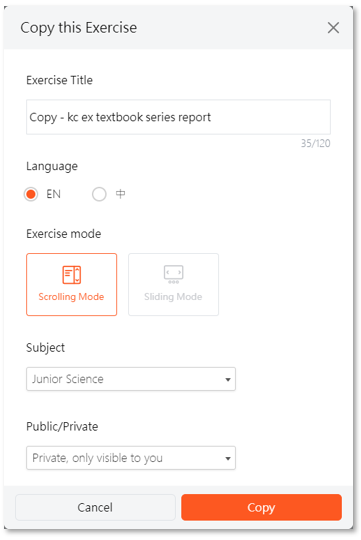
Teachers can copy exercises to 'My Exercises' and edit them according to their needs.

1. In 'Library'   or 'My Exercises'   ,  select the desired exercise and click  .

 
2. Modify 'Exercise Title'. Set 'Language', 'Exercise mode', 'Subject' and 'Public/Private type' of the exercise. Then click 'Copy'.

 
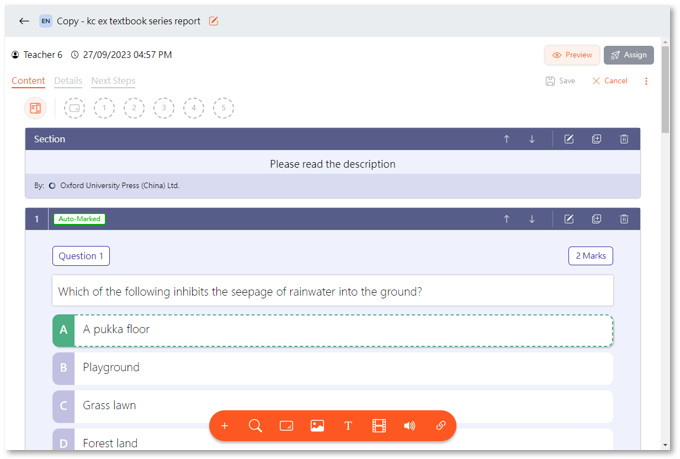
3. After copying the exercise, go to the question design section. Teachers can then preview, modify, save or directly assign the exercise to student here.


Teachers can modify the questions of the execrise by using the toolbar below.


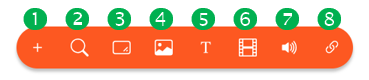
Add New Question  Search Question  Add Section  Add Image

Add Text   Add Video  Add Audio  Add Hyperlink
 
4. Once completed, click 'Save' . The exercise will be saved in 'My Exercises'.


Create Exercises

In addition to using the preset exercises in the Oxford Exercise Pools or the School's Shared Exercises, teachers can also create new exercises as needed.

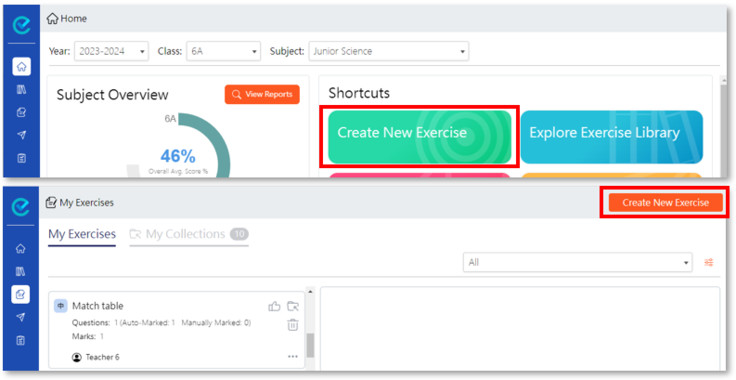
1. In 'Homepage'  , click  .
Or
In 'Library' 
 or 'My Exercises'  , click  to start creating a new exercise.

 
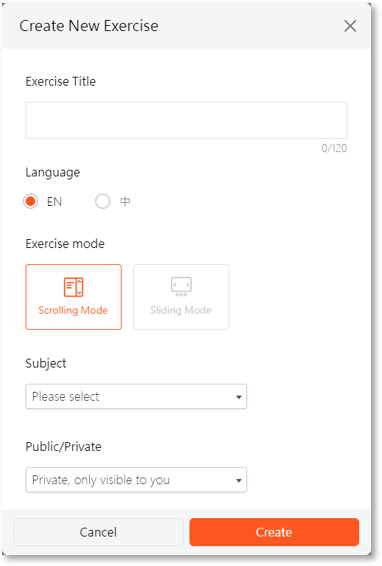
2. Enter the exercise title. Set 'Language', 'Exercise mode', 'Subject' and 'Public/Private type' of the exercise. Then click 'Create'.

 
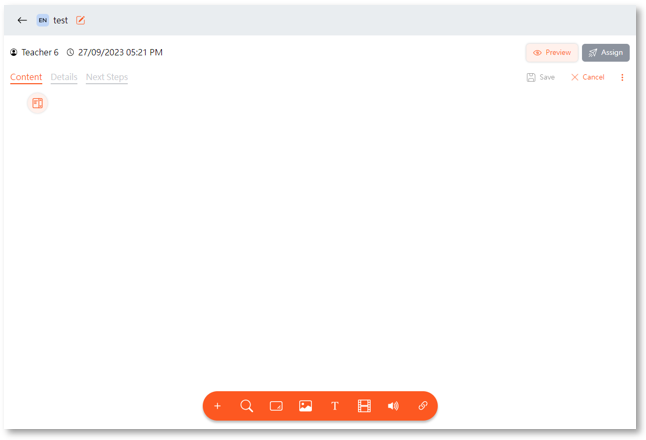
3. After creating the new exercise, teachers can start creating questions.


Teachers can add questions by using the toolbar below.


Add New Question  Search Question  Add Section  Add Image

Add Text  Add Video  Add Audio  Add Hyperlink
 
4. Once completed, click 'Save'  . The new exercise will be saved in 'My Exercises'.


Share Exercises

Teachers can create new exercises or set their existing exercises to public status to share them with other teachers in the school, as needed.

1. Create a new public exercise

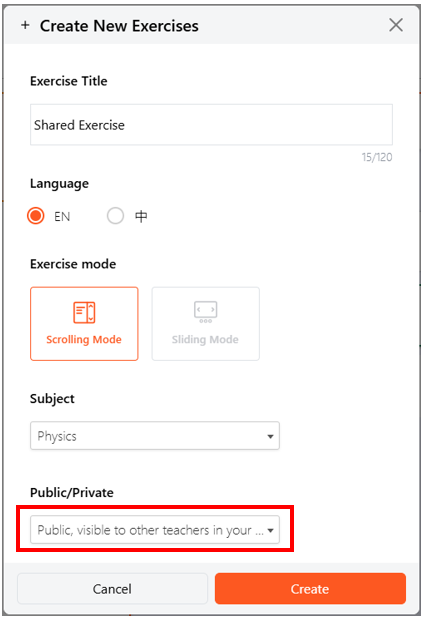
In 'Library'  or 'My Exercises'  , click  to start creating a new exercise.


Set the exercise to public, then click 'Create' to start creating questions.


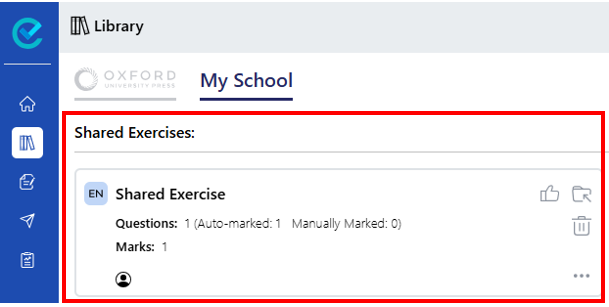
Once completed, click 'Save'  . The new exercise will be shared in 'Shared Exercises' under 'My School'.

 
2. Set my exercise as public exercise

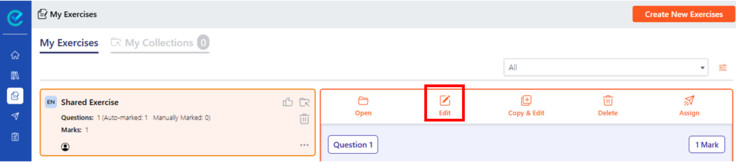
In 'My Exercises'  , choose the exercise you want to share and click edit .


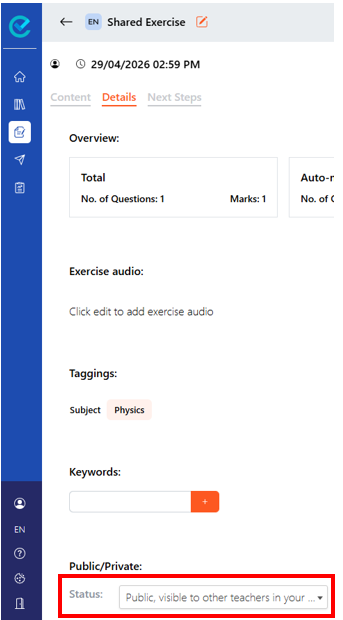
Modify the status into public mode on the 'Detaails' page.


Once completed, click 'Save'  . The saved exercise will be shared in 'Shared Exercises' under 'My School'.


Exercise editing page (Content)

Teachers can create new exercises or modify existing exercises on the exercise editing page. Teachers can add, delete or modifiy the exercise content in 'Content' . After editing, teachers can preview, save or assign the exercises to students.


 / 
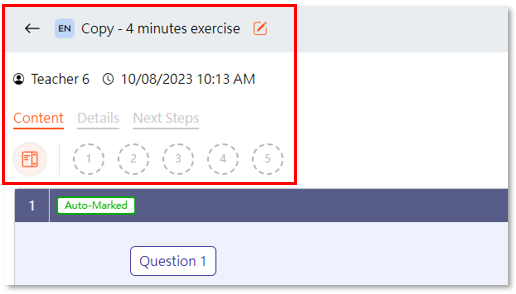
Change the language setting of the current exercise.
 
Update the exercise title.


The owner of the current exercise and the date and time of the last update.
 
Find and modify the exercise content such as layout, questions, texts, paragraphs, pictures, multimedia content here.
 
Browse and modify information of the exercise such as taggings, keywords and types (public/private) here.
 
Browser, modify or add follow-up settings of the exercise here.


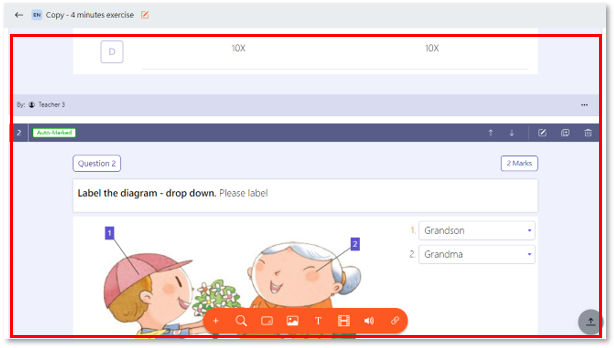
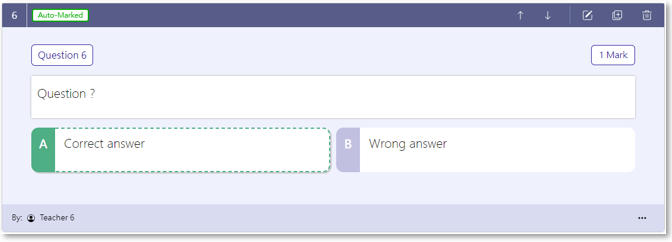
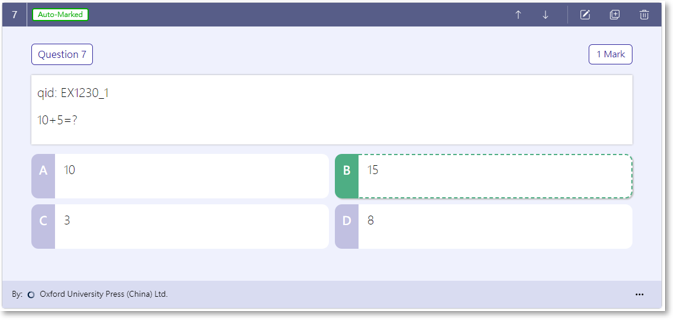
Click to show the details of the question such as hints, answer keys and taggings


Type of the question is shown: auto-marked or manually marked.


The question number and its score are shown.
 
Click to change the sequence of the item.
 
Click to modidy the question information such as content, answers, hints, scores, taggings, etc.
 
Click to duplicate the current item and paste it below.
 
Click to delete the current item.
 
Tools to add and edit exercise content.


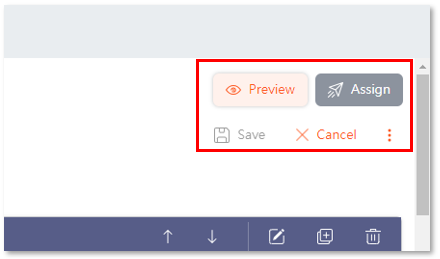
Click to preview the exercise.
 
Click to hide or show the question details.
 

Click to save or cancel the changes made to the exercise content.
 
Click to assign the saved exercise to students.


Exercise editing page (Details)

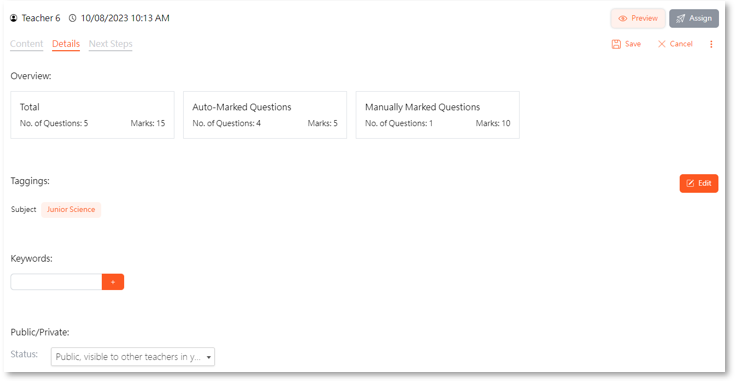
Teachers can browse and modify the information of the current exercise such as exercise overview, taggings, keywords and public/private mode of exercise on the 'Details' page.


Overview:
The number of auto-marked/manually-marked questions and their scores is shown here.
 
Taggings: Click 'Edit'  button to modify the taggings.
Types of tagging include 'Subject', 'Difficulty', 'Textbook Series', etc.

 
Keywords: Click the  button to add keywords.
 
Public/Private:
The mode of the exercise can be selected here.
Private: only visible to you
Public: visible to other teachers in your school.


Exercise editing page (Next Steps)

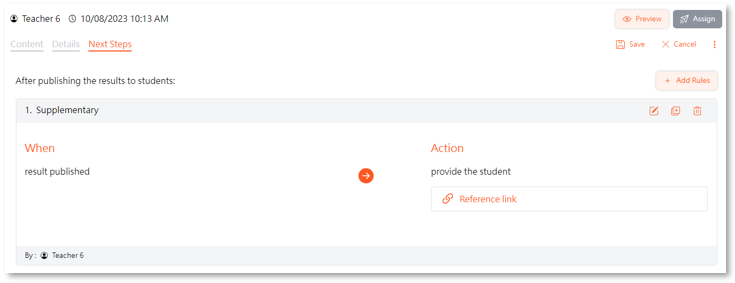
Teachers can browse or modify the follow-up settings of the exercise on the 'Next Steps' page.


1.
Click the  button to add a new rule for the exercise.
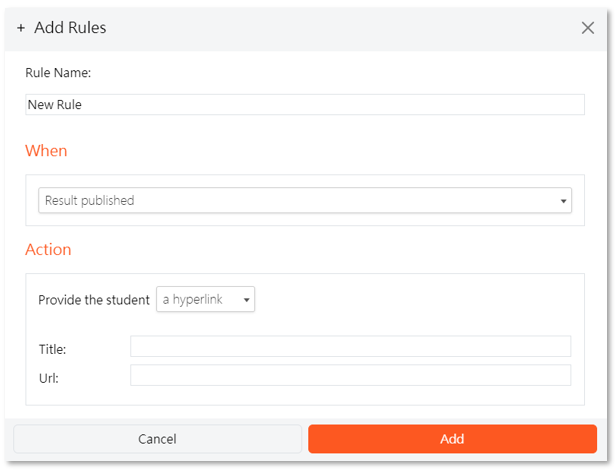
Enter the rule name, select the condition for rule execution and the material to be provided to students. The material can be a hyperlink or a file.
Click 'Add' to apply the newly created rule to the exercise.


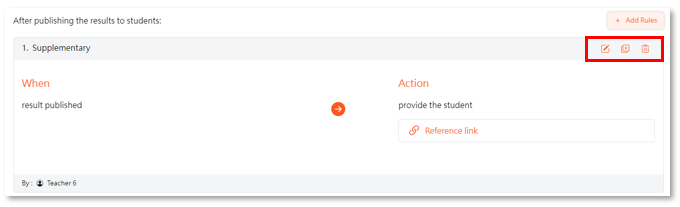
2. Teachers can also click the buttons on toolbar to modify , copy  or delete  the specified rules.


Exercise editing tools

Teachers can use the various functions on the exercise editing toolbar to create, edit or modify the questions or the exercise content.


1. Add New Question 

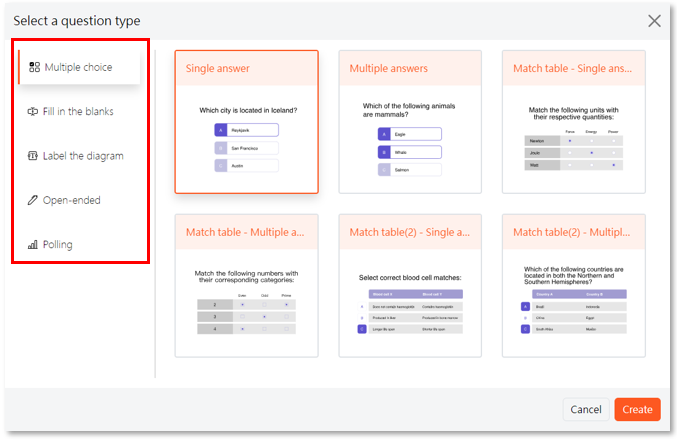
Select the required question type and click 'Create'.


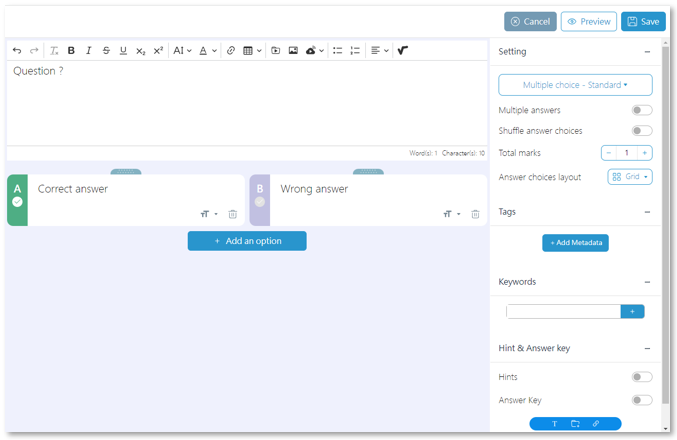
Enter the question and the answer. Set the content of the question such as answer type, tags, keywords, hints and answer key in 'Setting'.


Click 'Save' to add the question to the exercise.


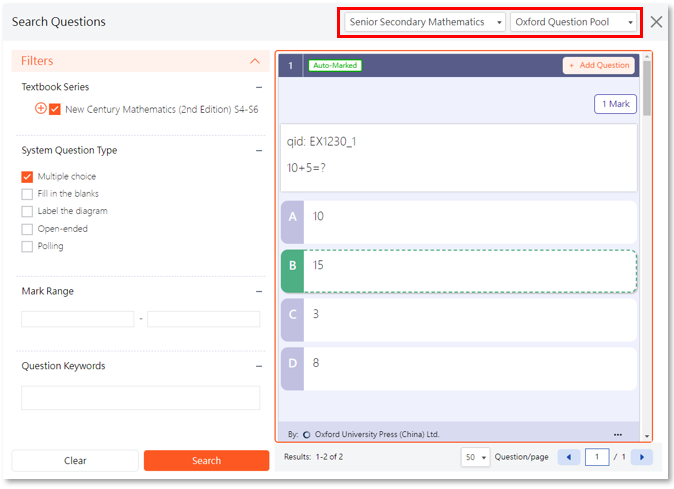
2. Search Question 

Select the texbook series and question pool from the list. Set the filter options and question type. Then click 'Search'.


In the search results, click '+ Add Question' to add the question to exercise.


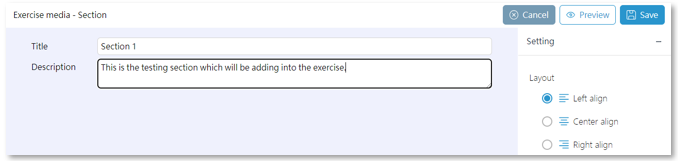
3. Add Section 

Enter the title and the description. Choose the suitable layout.


Click 'Save' to add the section to exercise.


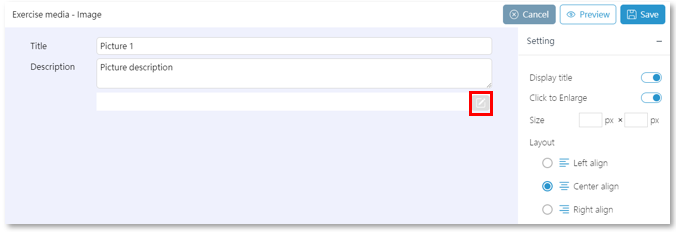
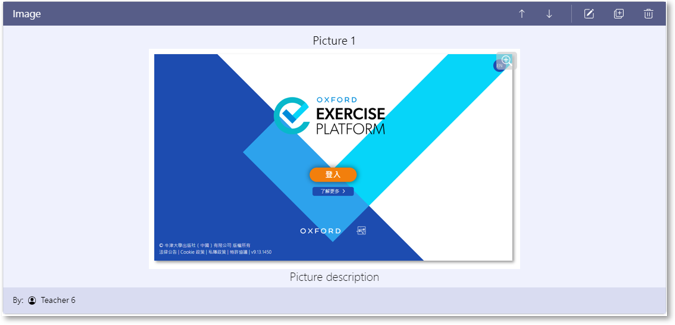
4. Add Image 

Enter the title and description of the image.
Click  to look for the image in your computer. Select the image to upload. Set the image properties and display format in 'Setting'.
Image files support jpg/jpeg, png, svg, gif or heic format, with a maximum size of 50MB.


Click 'Save' to add the image to the exercise.


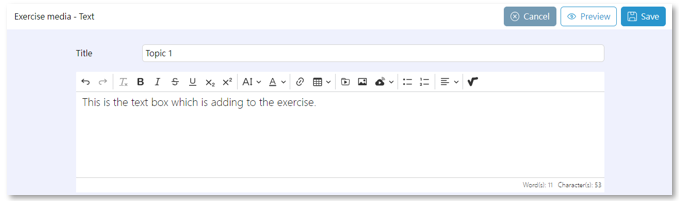
5. Add Text 

Enter the title and the text.


Click 'Save' to add text to the exercise.


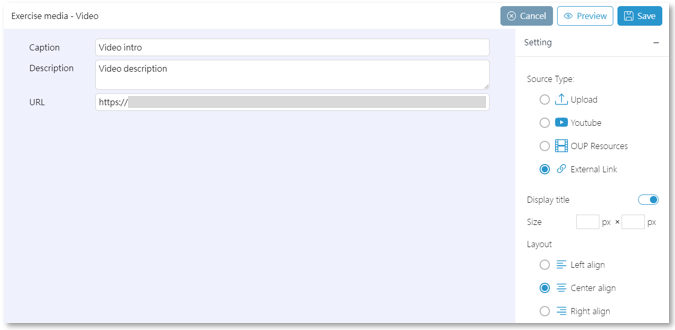
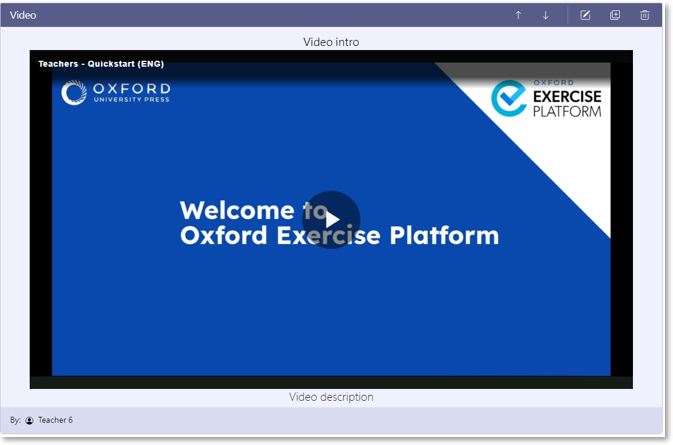
6. Add Video 

Enter the caption, the description and the URL of the video. Set the video source type and display format in 'Setting'.
Apart from entering a URL, a video file can also be uploading directly.
Video files support mp4 or mov format, with a maximum size of 80MB.


Click 'Save' to add the video to the exercise.


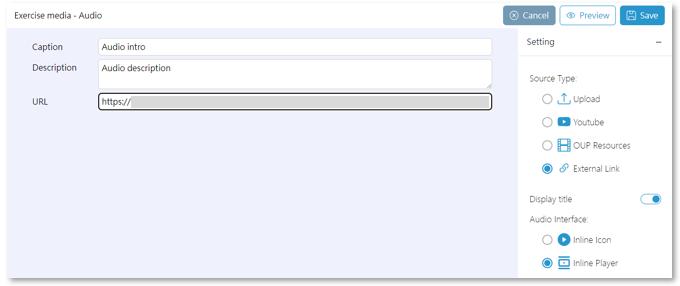
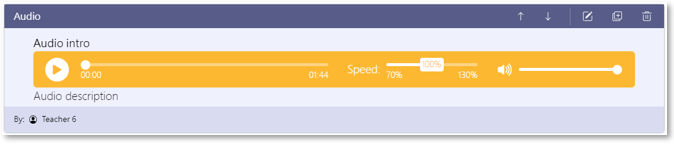
7. Add Audio 

Enter the caption, the description and the URL of the audio. Set the audio source type and display format in 'Setting'.
Apart from entering a URL, an audio file can also be uploading directly.
Audio files support mp3, wav or aac format, with a maximum size of 50MB.


Click 'Save' to add the audio to the exercise.


8. Add Hyperlink 

Enter the title, the description and  theURL. Select the title display setting.


Click 'Save' to add the URL to the exercise.


Questions types

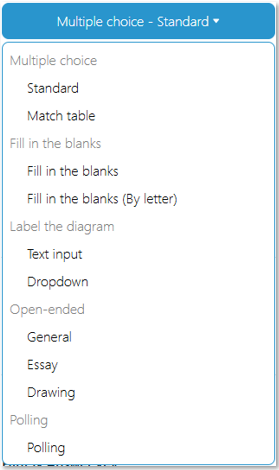
The Oxford Exercise Platfrom provides five different question types for teachers to choose from.
Teachers can choose the required question types and to create new exercises or modify existing exercises.

Select the required question type and click the 'Create'  button to enter the question editing page.

After entering the question content and settings, you can save the new question to the exercise.

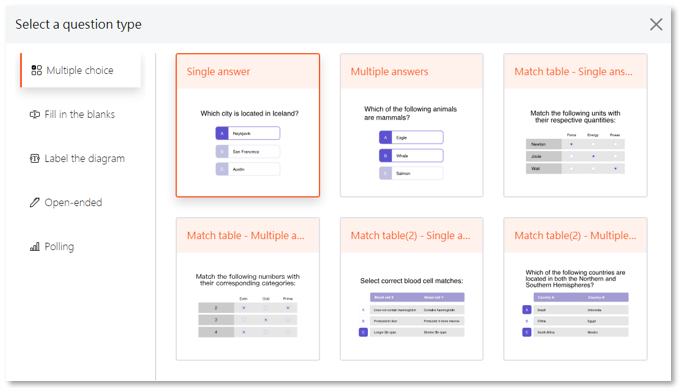
  • Multiple choice

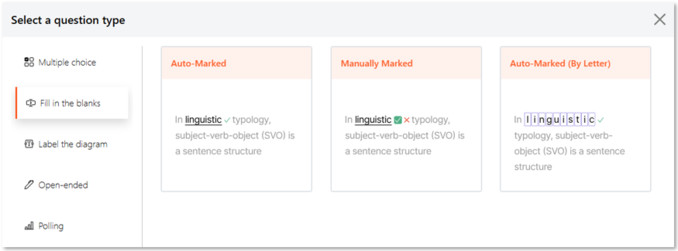
  • Fill in the blanks

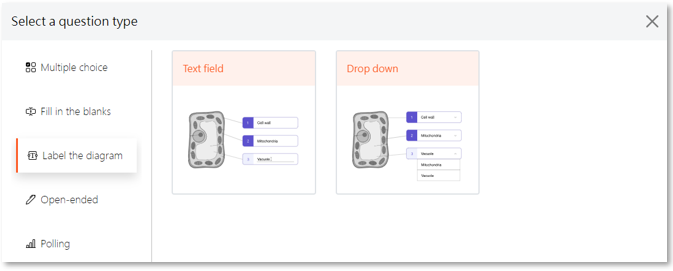
  • Label the diagram

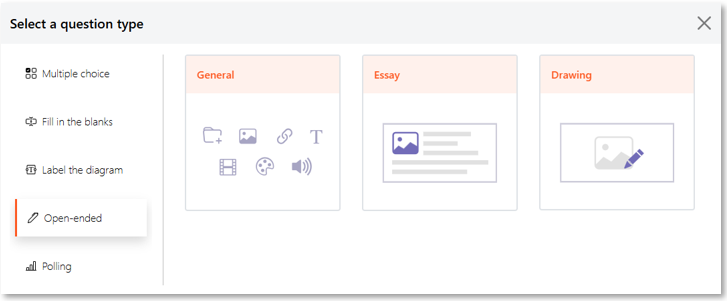
  • Open-ended

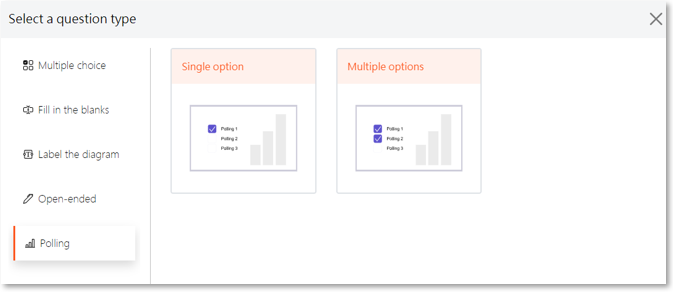
  • Polling


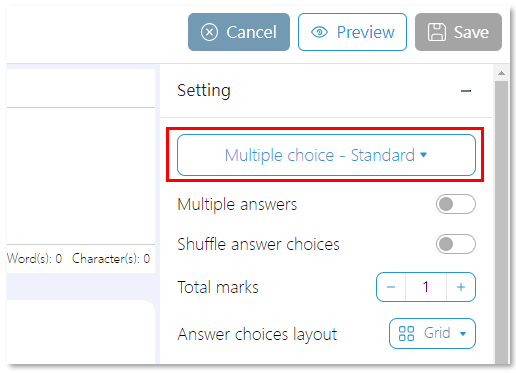
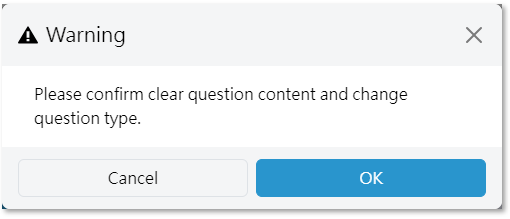
Hint: Teachers can change the question type in the question editing page any time. Please note that all content will be cleared when the question type is changed.
 
1. In 'Setting' of the question editing page, click the question type option.

 
2. Select the question type that you want to change to.

 
3. Click 'OK' to clear the question content and change the question type.


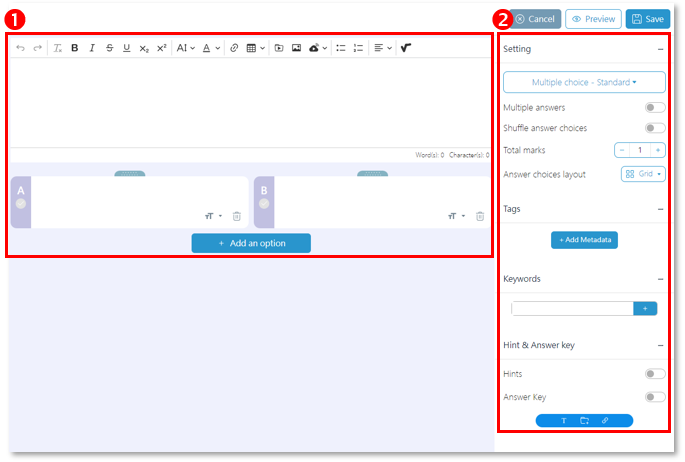
Question editing page

❶ Question content editing area: Create, modify or delete questions and answer content.
❷ Question setting area: Change the question settings such as marks, layout, tags, keywords, etc. 


After editing the question, click  to preview the question or click  to save the question to the exercise.


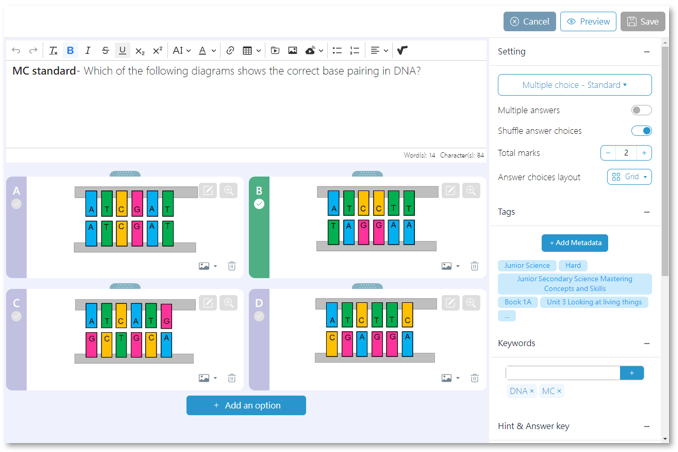
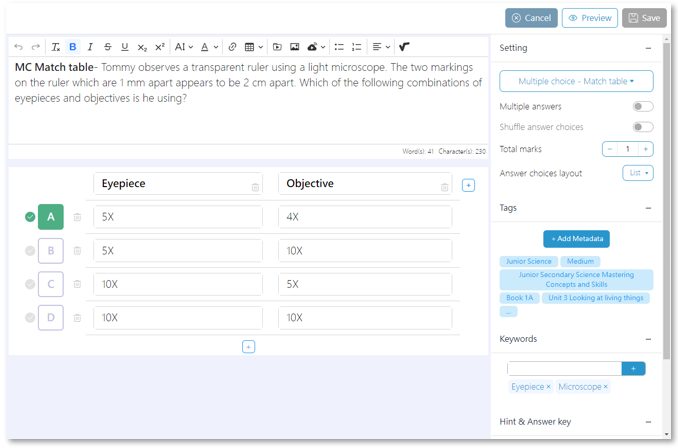
Multiple choice

Example: Standard multiple-choice questions


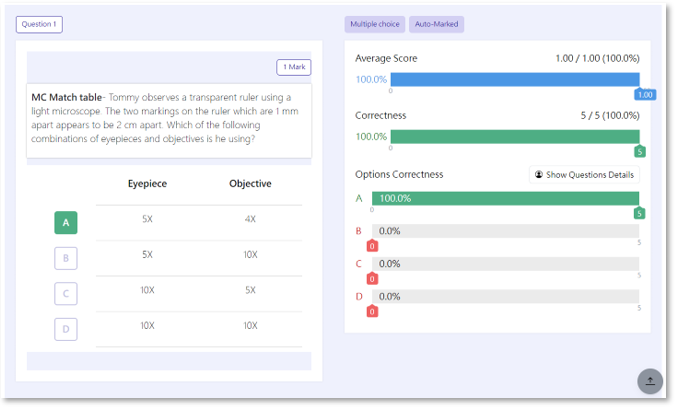
Example: Multiple-choice questions matching tables


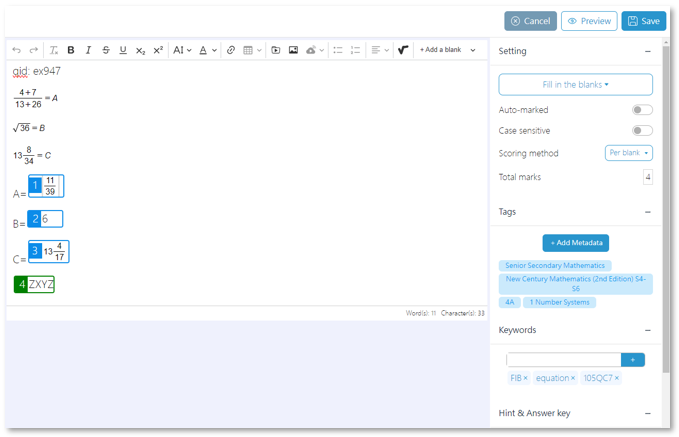
Fill in the blanks

Example: Blank-filling questions


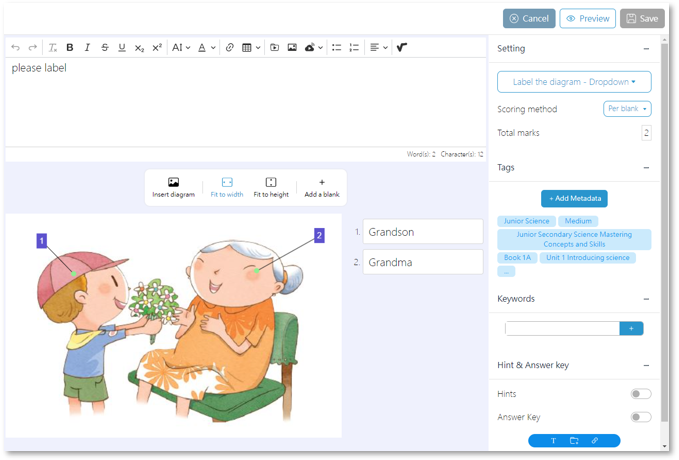
Label the diagram

Example: Label the diagram with a drop-down menu


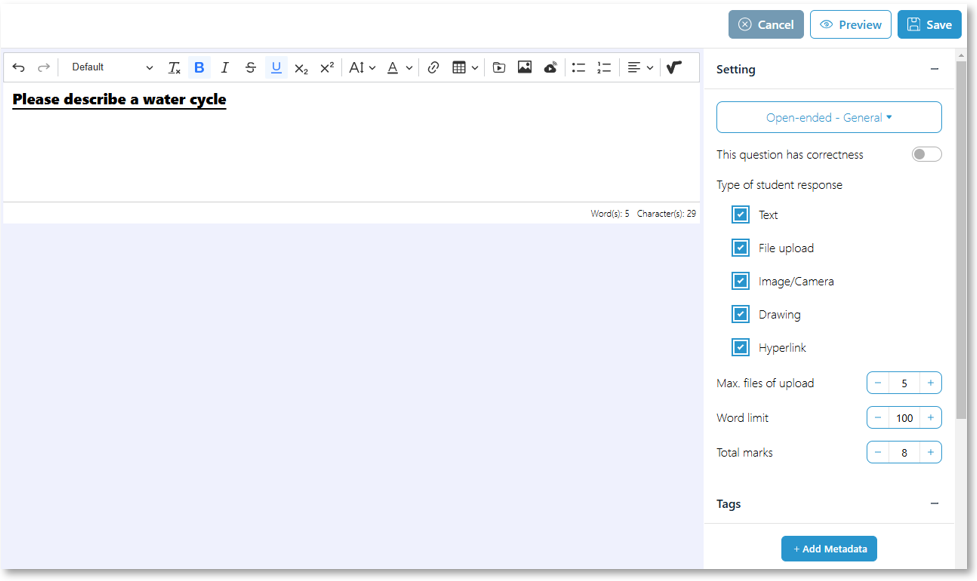
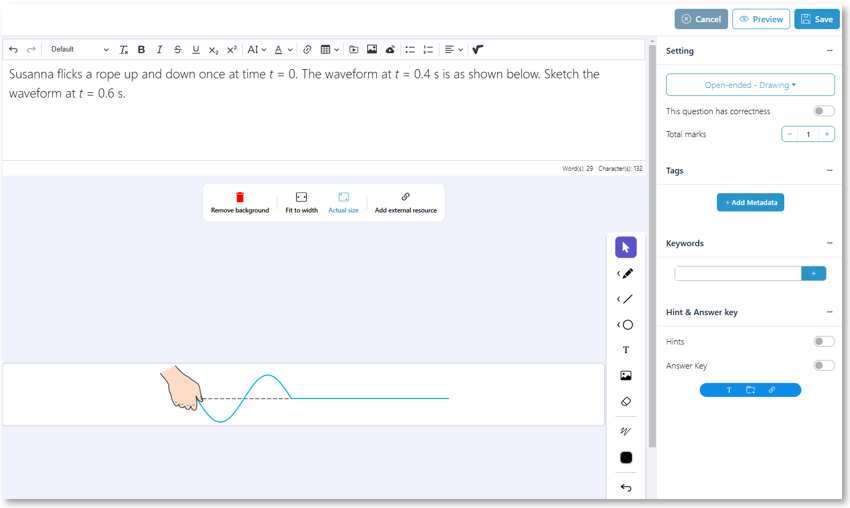
Open-ended

Example: General open-ended questions


Example: Open-ended questions - Drawing


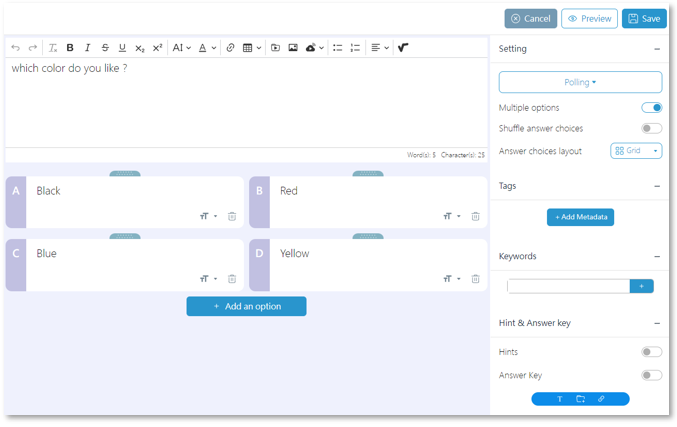
Polling

Example: General polling questions


Assign the exercises to students

Teachers can find specific exercises from different exercise libraries and assign them to students.

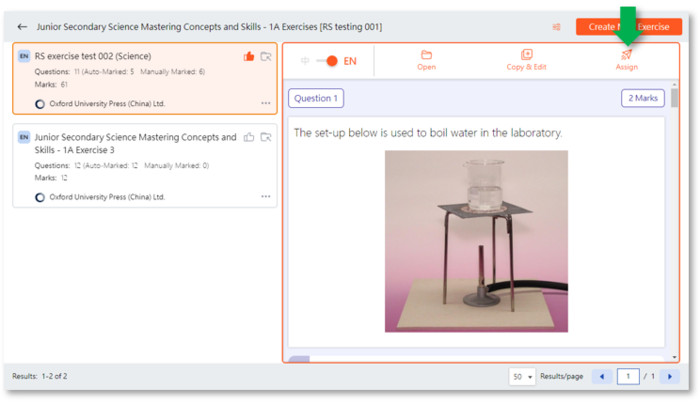
1. In 'Library'  or 'My Exercises'  , select the desired exercise and click 'Assign' .

 
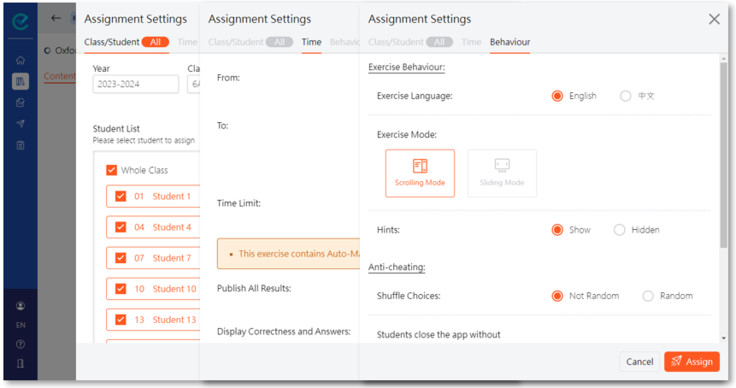
2. In the 'Assignment Settings' interface, select the Class/Student to be assigned. Additionally, you can adjust the assignment settings, including the assignees, start and end time, time limit, grading, anti-cheating settings, etc. Once done, click the 'Assign' button  .

 
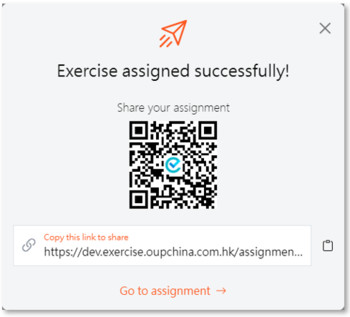
3. Once the exercise is successfully assigned, the hyperlink and QR code of the assignment will be provided for teachers to share with students.

 
4. Teachers can check the records and status of assignments in the 'Assignments' section  .


Mark the assignments

If the questions are designed to be automatically marked, the Oxford Exercise Platform will automatically mark them for you. However, if there are any manually marked questions in the exercise, teachers will be required to mark these questions themselves.

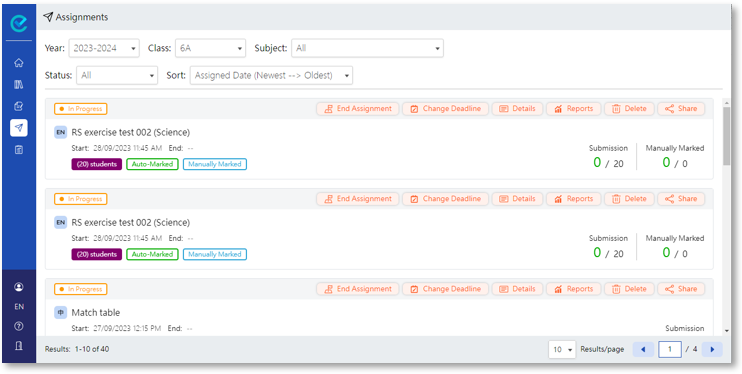
1. Teachers can check the status of assignments in 'Assignments'  .
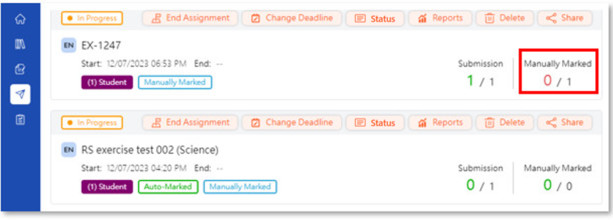
If there are assignments that require manual marking, the 'Manually Marked' tag  will be shown in the status.


2. Click 'Status'  to show the details of the assignment.
The 'Pending to mark' tag  will be displayed in the exercise which have been submitted by the student. Click the tag to access the marking page.

 
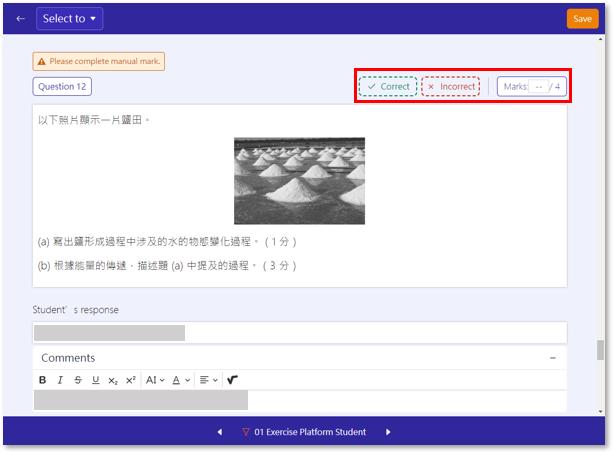
3. On the marking page, teachers can mark the questions as correct or incorrect, assign appropriate marks, and give comments to students.
Once completed, click the 'Save' button.


4. The marked results will be immediately shown in the assignment's status.


Publish Results

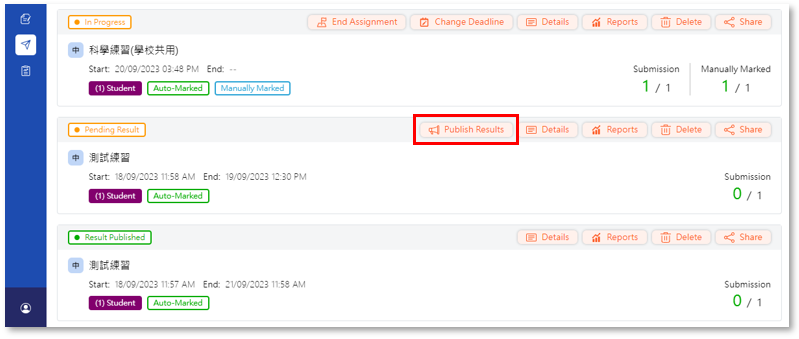
After completing the marking process (including automatically marked or manually marked questions), teachers can publish the assignment results. The scores will be displayed in student's accounts and analysis reports.

1. In 'Assignments' , locate the assignments of which the results need to be published. Click 'Publish Results'  .

 
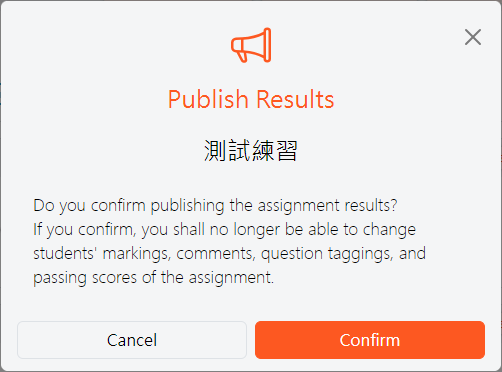
2. Click 'Confirm' to publish the results of the assignment.

 
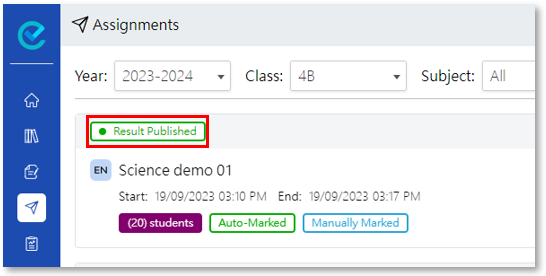
3. On the assignment status list, the 'Result Published' tag  will be displayed, indicating that students can check their scores, and the results will be reflected in the relevant analysis report.


Check individual exercise status and results

After assigning the exercises to students, teachers can check the status, students' performance and overview reports of these exercises.

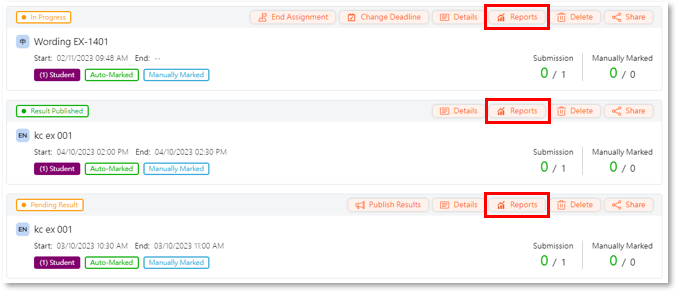
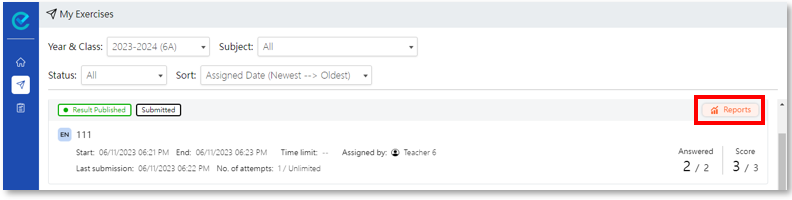
1. In 'Assignments'  or 'Assignments Due Soon (Top 5)', click the 'Report'  button to view the exercise status and report.

 
2. In the exercise report page, export the report in Excel format by clicking the 'Download Excel'  button.
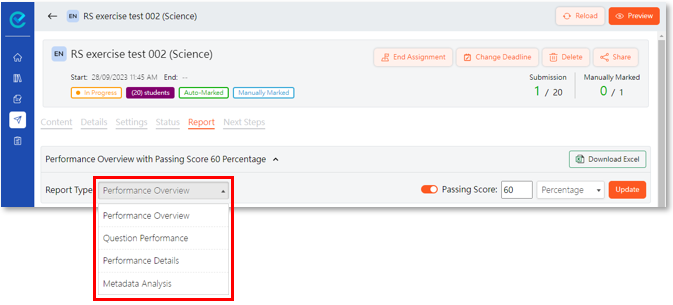
Teachers can also choose the different types of reports and update the passing mark of the exercise here.


3. There are four types of reports.

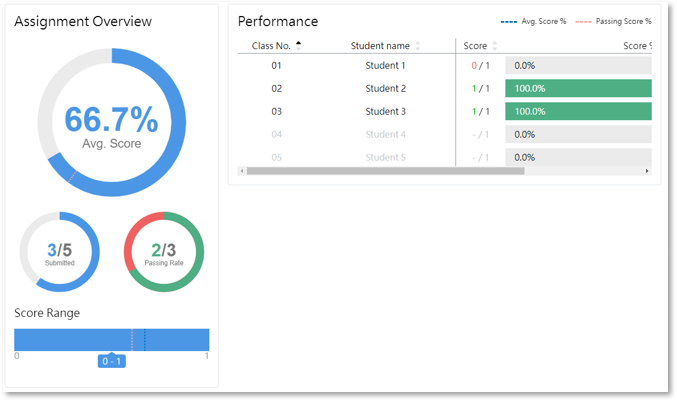
Type 1: 'Performance Overview' shows the assignment overview and students' performance.


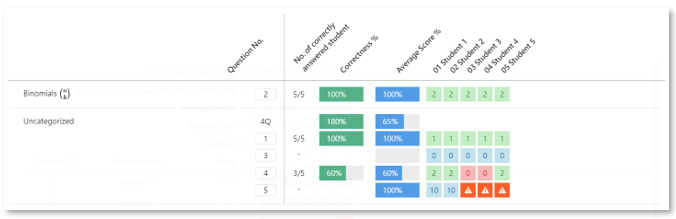
Type 2:  'Question Performance' shows the details of the questions and the average score.


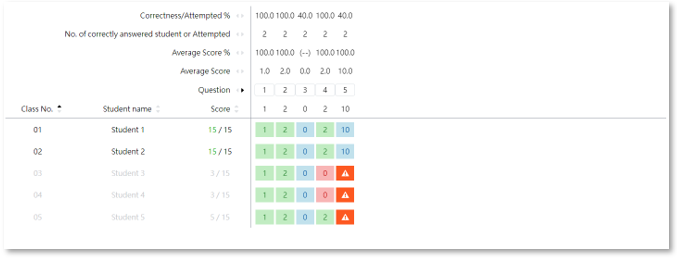
Type 3: 'Performance Details' shows the results of each student and the performance of each question.


Type4 : 'Metadata Analysis' shows the overall average score based on the metadata of the exercise.


Teacher Report Page

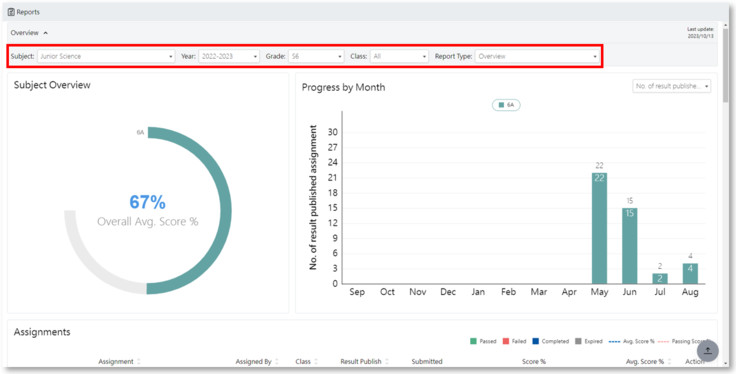
Teachers can view various analysis reports and the overall performance based on different subjects, school years, grades, classes and individual students.

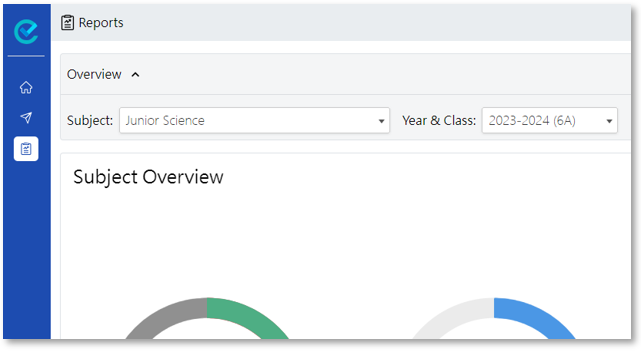
1. Click 'Reports'  .

 
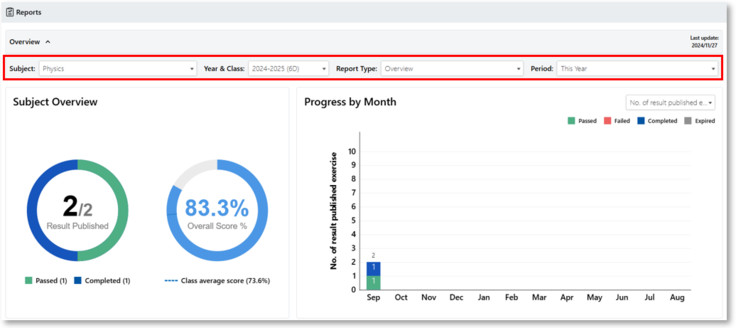
2. Teachers can use the filter function to view different types of reports.


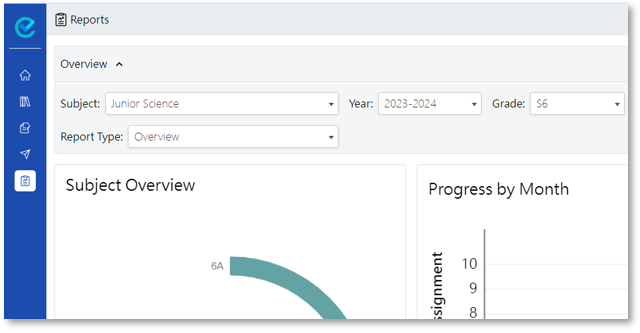
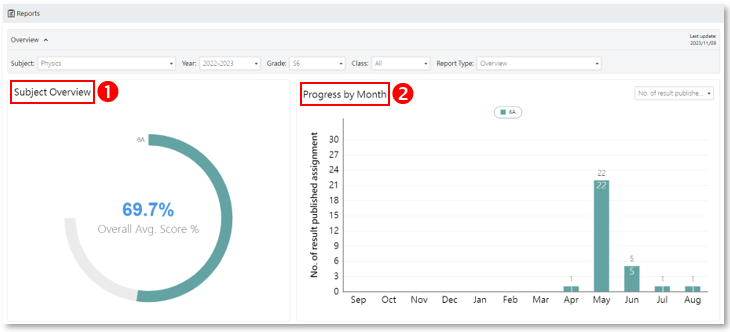
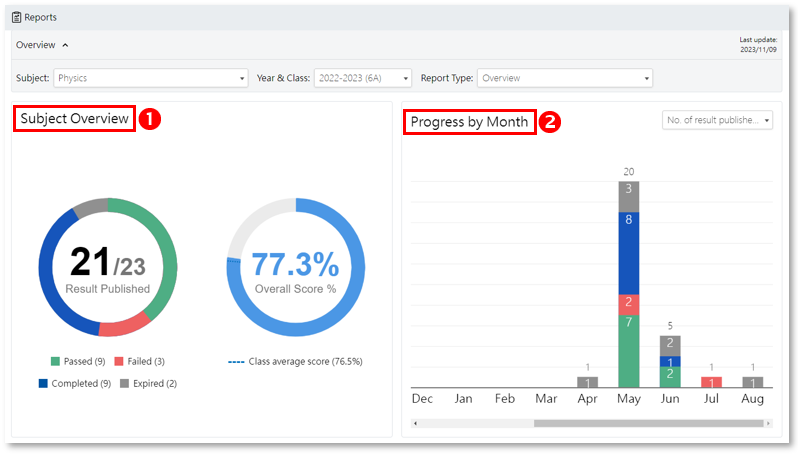
Report Type 1 : Overview

❶ Subject Overview: the average score of all assignments of a specific subject
❷ Progress by Month: the number of exercises with published results each month of a specific subject


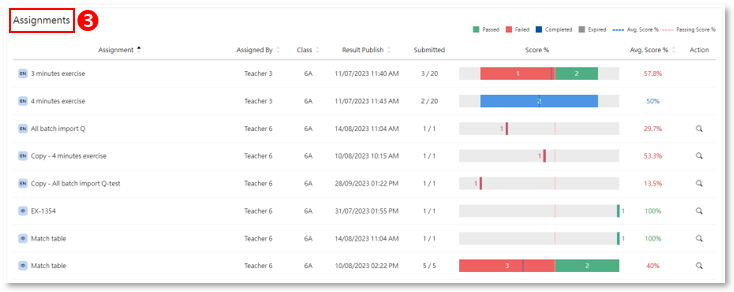
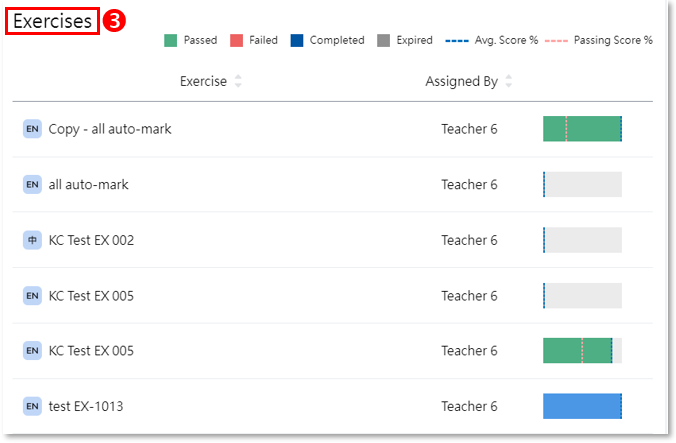
 ❸ Assignments: the progress of all assignments including the ones students passed, failed, completed and the ones which expired, as well as the average and passing scores of each assignment


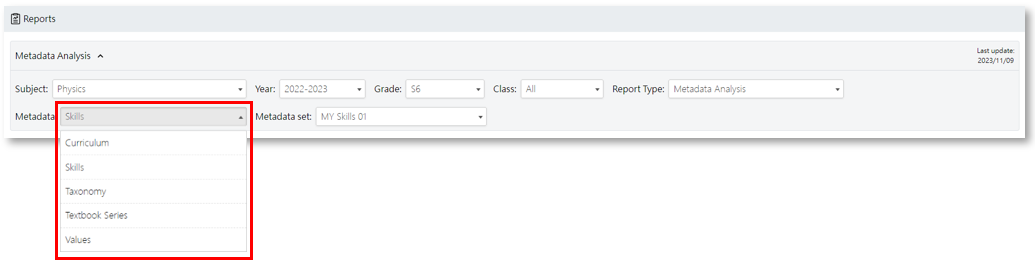
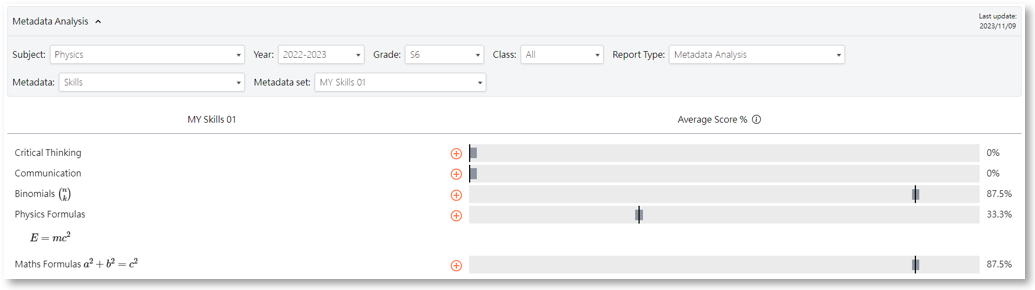
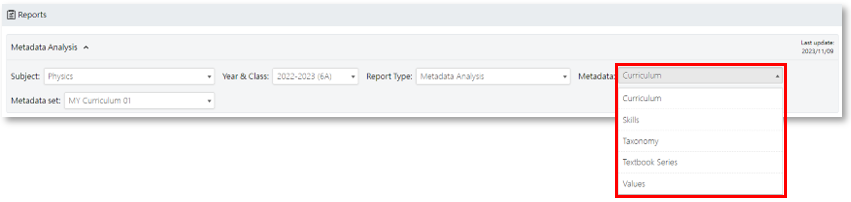
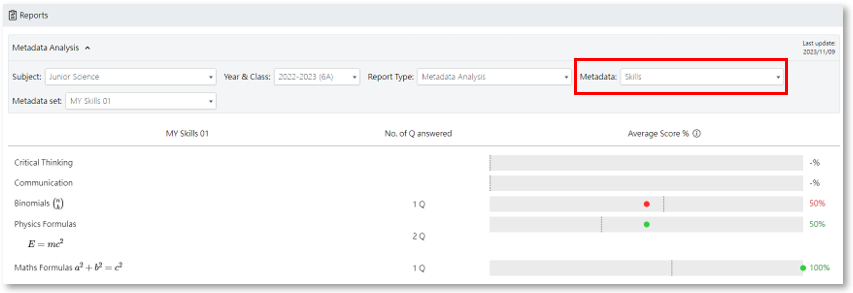
Report Type 2 : Metadata Analysis

Metadata Analysis report provide students' overall performance analysis based on different categories.

 
Example 1: Choose 'Skills' in 'Metadata'.

The report will show the average score of all students of each metadata.


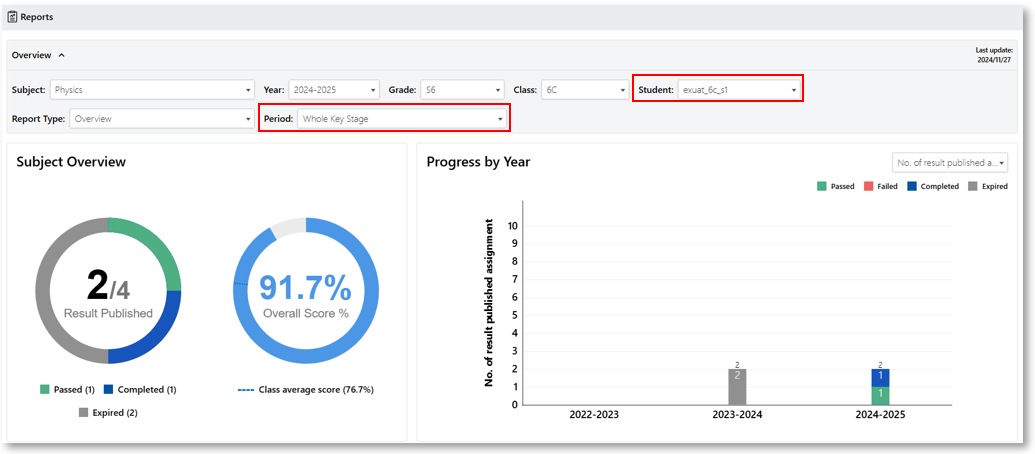
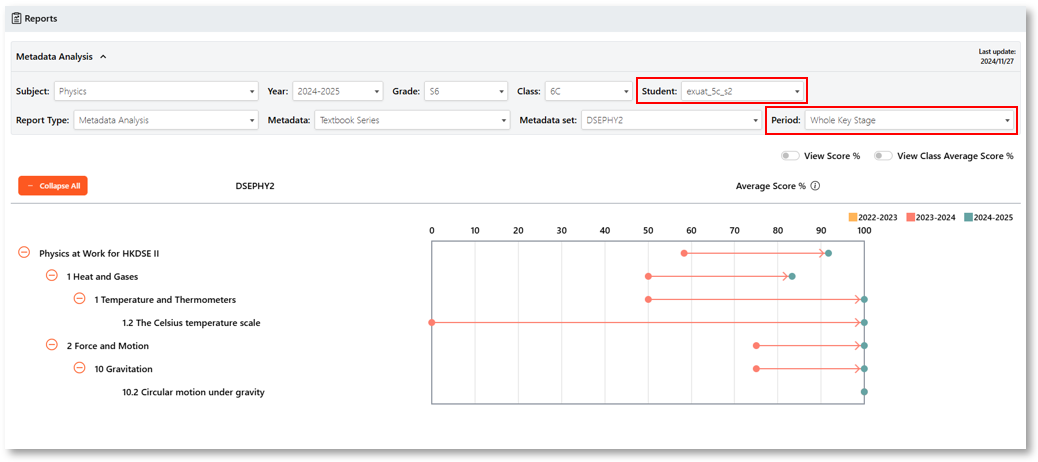
Key Stage Report

Teachers can review the performance of individual students through key stage reports.
 
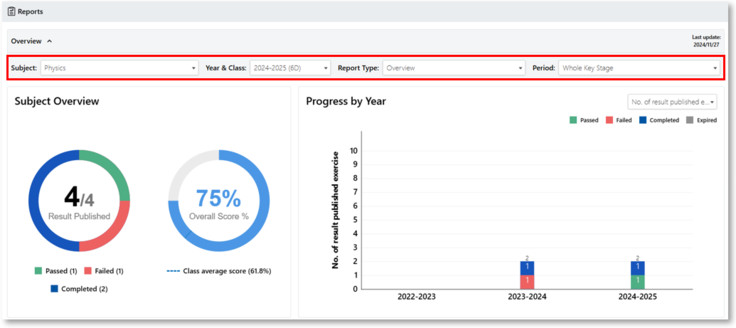
Example 1: The 'Overview' report for the whole key stage of an individual student.


Example 2: The 'Metadata Analysis' report for the whole key stage of an individual student.


Enable Cookies

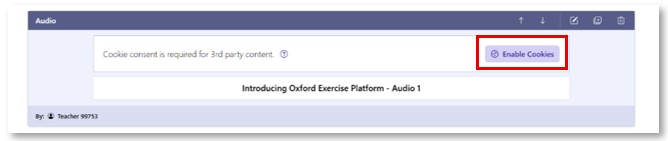
If you need to include third-party content resources (such as Youtube videos or audio content) in the exercises, teachers need to enable necessary cookies before viewing such content in the exercises.
【If you have already agreed to enable necessary cookies in the Oxford Exercise Platform, you can skip the following steps.】

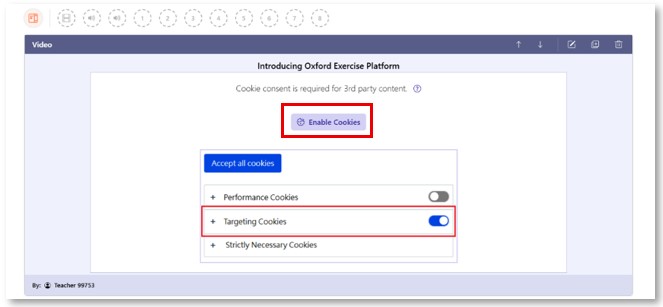
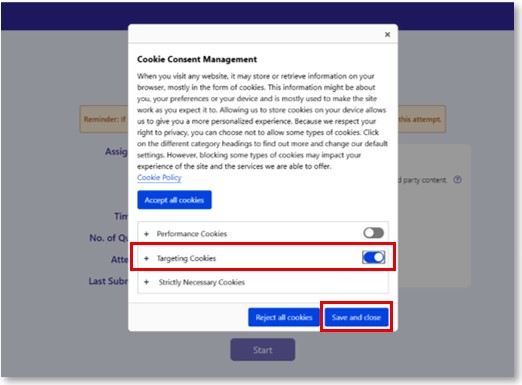
1. After adding third-party videos or audios to the exercises, you need to click "Enable Cookies" to change the cookies settings.


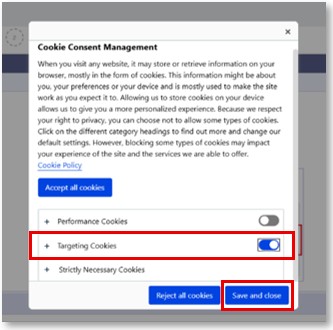
2. In the ‘Cookie Consent Management’ window, enable ‘Targeting Cookies’.

 
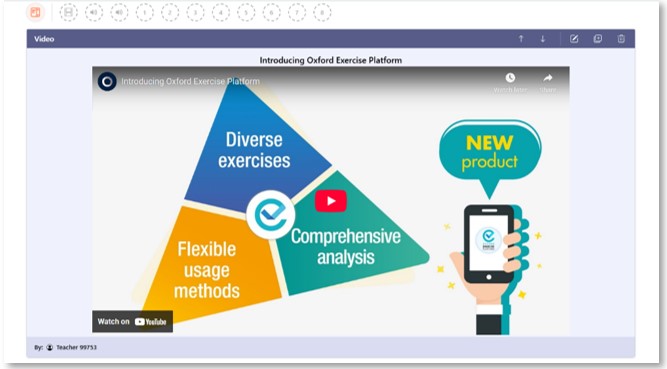
3. After enabled cookies successfully, audio and video resources of third-party content can be playing normally in the exercise.


 User guide for students


Log in to the Oxford Exercise Platform

By using the browser, users can log in and use the Oxford Exercise Platform on various devices.

1. Open your browser and go to the Oxford Exercise Platform. Once there, click on the 'Login' button.

 
2. Enter your username and password to log in to the Oxford Exercise Platform. (Please use your Oxford iSolution account to log in.)

 
3. After successfully logging in to the Oxford Exercise Platform, you will be directed to the user homepage, where you can access the various features and resources available on the platform.


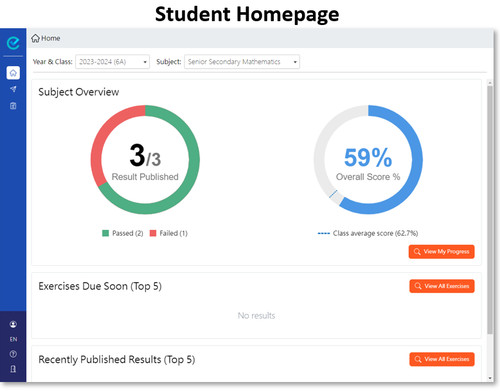
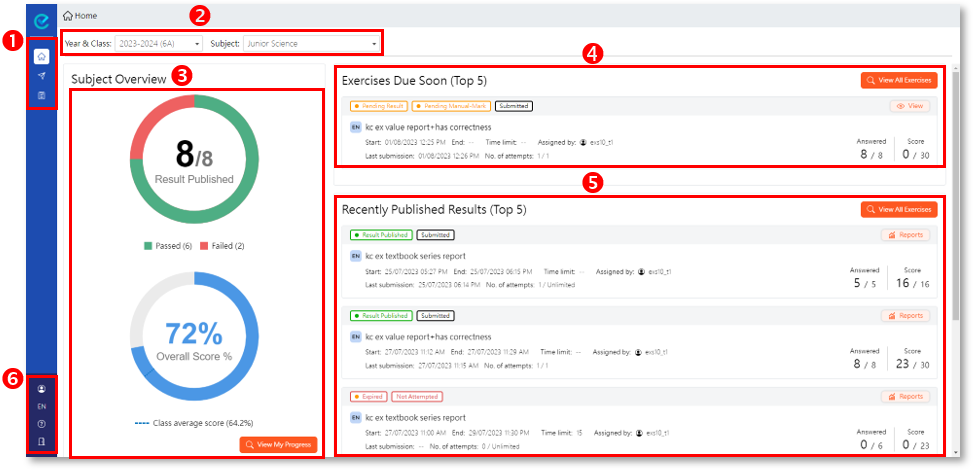
Student Homepage

1.
Home :  All exercise and assignment summaries and reminders are displayed here.
  My Exercises :  Find the exercises assigned to you from your teachers and their statuses here. 
  Learning Reports :  Access comprehensive reports and analysis of various types of exercises based on the selected Subject, Year, Grade and Class here. 
 
2. Year & Class:
Subject:
Choose the year and subject to view the corresponding overall average score in the chart in .
 
3. Subject Overview
A chart based on the selected year and subject in  will be displayed here.
To view detailed analysis reports, click  and go to the 'Reports' section.
 
4. Exercises Due Soon (Top 5) Check here for the top five exercises that are due for submission soon.
 
5. Recently Published Results (Top 5) Check here for the top five exercises with recently published results.
 
6.
Find your username here.
  Change the interface language of Oxford Exercise Platform here. 
  Open the User Guide Page here. 
  Log out from the Oxford Exercise Platform here.


Search for available exercises

Students can user the following methods to search for available exrcises.

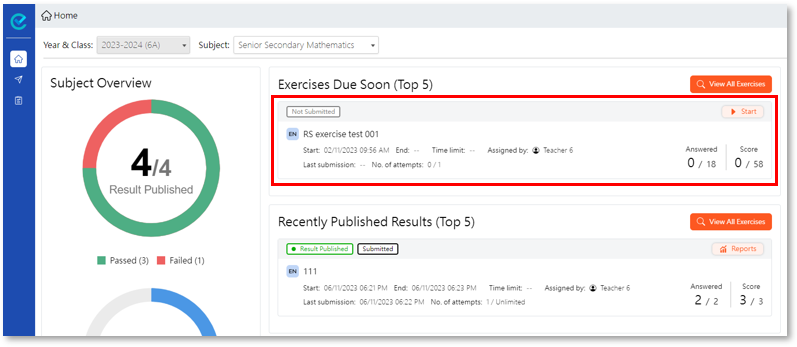
Method 1: On the homepage, the five exercises that are due soon will be shown in the 'Exercises Due Soon (Top 5)' column.
Find the 'Not Submitted'  exercises and click the 'Start'  button to start answering.


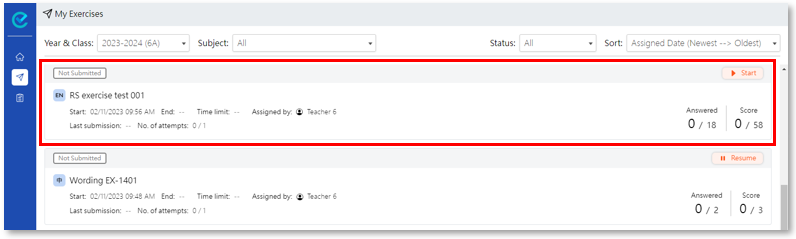
Method 2: Click 'My Exercises'  on the menu to view all your exercises.
Find the 'Not Submitted'  exercises and click the 'Start'  button to start answering.


Hint: On the 'My Exercises' page, students can use the filter and set the status to 'Not Submitted' in order to fine the exercises quickly.


Start answering and submit exercises

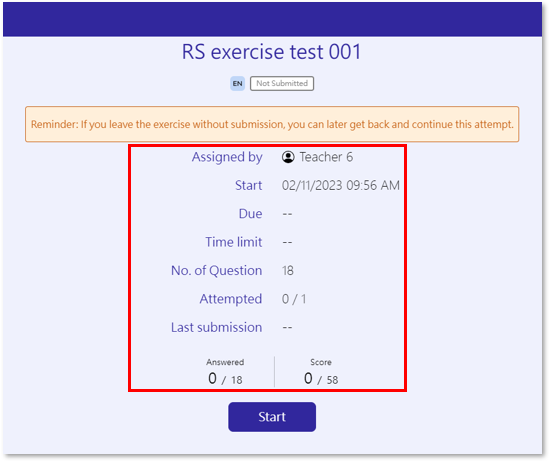
A starting page with details of the exercise will be shown once the 'Start' button is clicked. Students can start working on the exercise and submit it once completed.

1. Find the 'Not  Submitted'  exercise and click the 'Start'  button.

 
2. The starting page will show the information of the exercise, including the teacher's name, start and due date and time, time limit, number of questions, the last submitted time (if any) and the number of answered questions and the scores.
Click the 'Start'  button to starting working on the exercise.
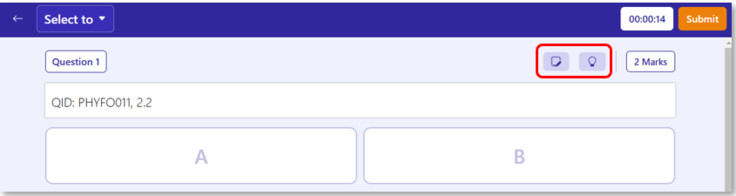

 
3. Students will see all the questions on the exercise page.
The scribbling tool button and hints button (if applicable) will be shown above each question.


 Click to open the scribbling tools. You can make markings on the question (inside the green dotted-line box) using these tools. 
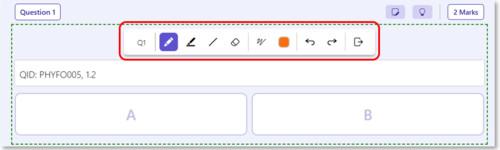
Note: The scribble will be erased once the attempt is submitted. Teachers will not receive the scribble.


 Click to show the hints (if any) of the questions.

  
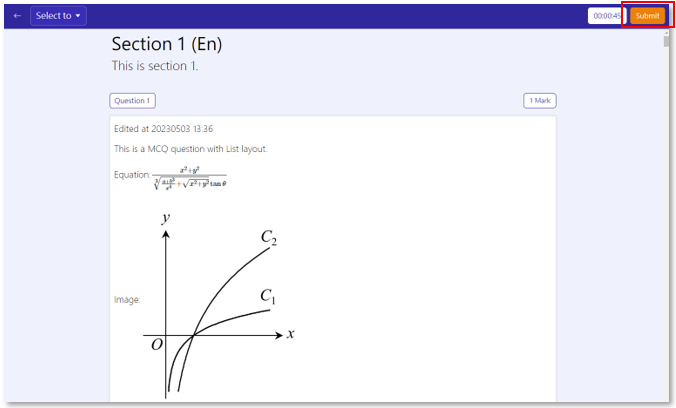
4. After answering all questions, click the 'Submit'  button to submit the exercise.

 
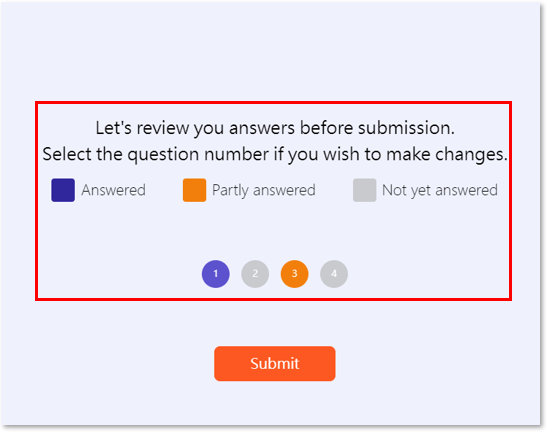
5. The status of all questions will then be shown.

 Question number shown in blue indicates that it has been answered.
 Question number shown in grey indicates that it has not been answered.
 Question nubmer shown in orange indicates that it has been answered partially.

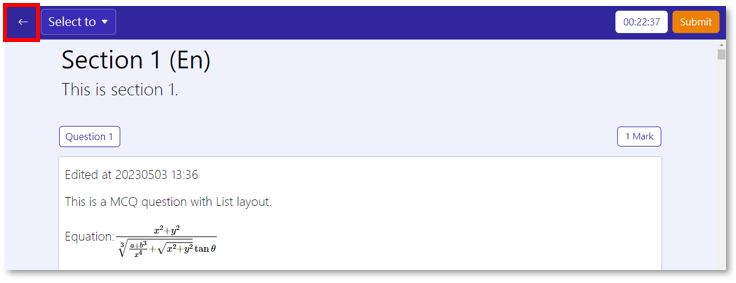
You can click the arrow  button on the upper left corner if you want to do the questions or modify the answers. 
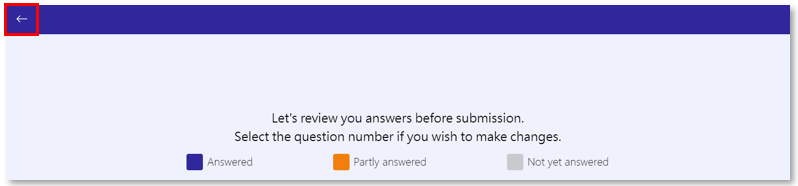

 
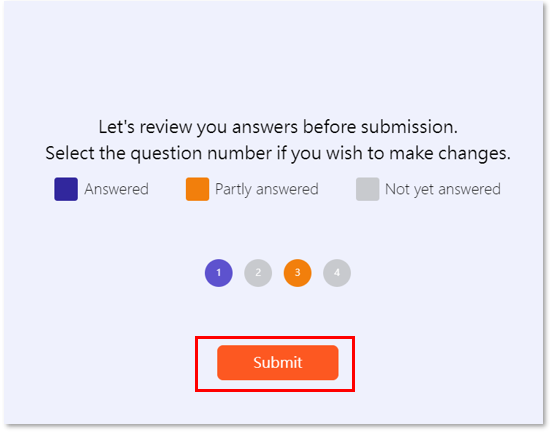
6. To submit the exercise, click the 'Submit'  button to confirm submission.

 
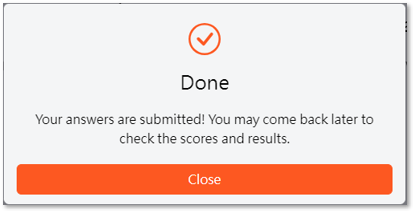
7. When the exercise is submitted successfully, a window indicating 'Completed' will be shown.


Resume exercises

During answering the questions, students can leave the exercise any time. The exercise progess will be saved automatically. Students can resume the exercise later.

1. To leave the exercise while answering the questions, click the arrow  button on the upper left corner.

 
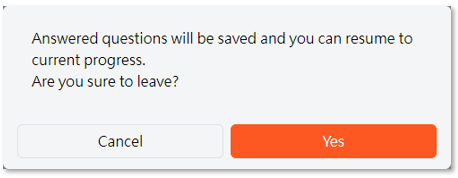
2. Click 'Yes' to confirm leaving the current exercise.

 
3. When you want to resume the exercise, find the exercise in 'My Exercises'  or 'Exercises Due Soon (Top 5), then click the 'Resume'  button of the exercise.


Check the exercise results

After the teacher has completed the marking of the exercise and published the results, the exercise will be tagged as 'Result Published' on the student's page. Students can check the results and report of the exercise.

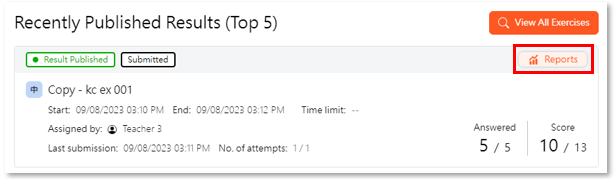
1. In 'My Exercises'  or 'Recently Published Results (Top 5)', find the exercise tagged as 'Result Published' .
Click the 'Report'  button on the upper right corner to view the exercise result and report.


Hint: On the 'My exercises' page you can use the filter and set the status to 'Result Published' in order to find the exercises quickly.

 
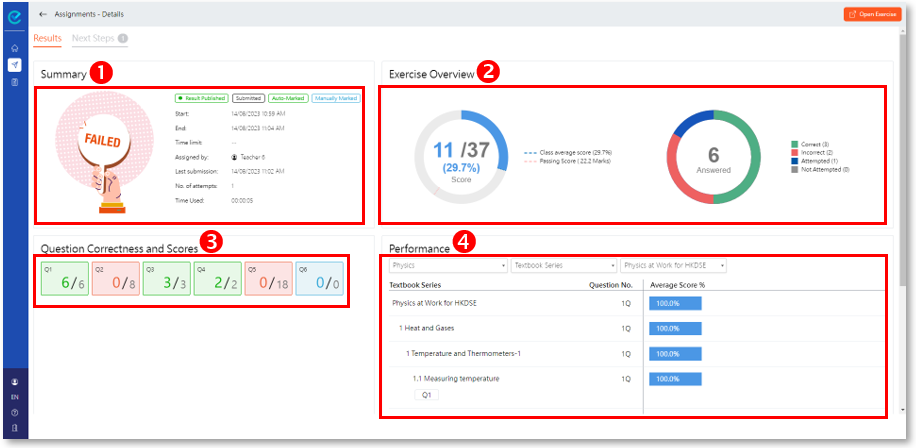
2. In the exercise report page, you can see the overview of exercise result, score of each question, exercise summary and performance.
  Summary: the exercise results and detailed information
  Exercise Overview: your score and the average score of your class
  Question Correctness and Scores: the score of each answered question
  Performance: the number of questions and the performance of each question category
 
3. Click the 'Open Exercise'  button and then the 'Results'  button to check your answers, model answers and teacher's comments (if any) on the report page.
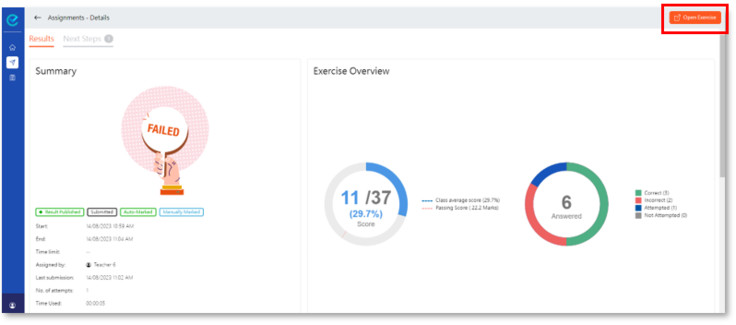
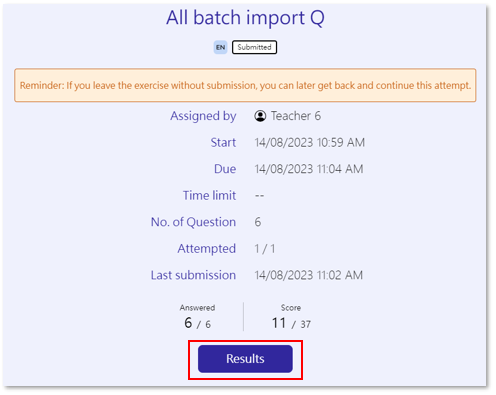

 
4. In addition, if the teacher has published any reference materials, you can check t by clicking 'Next Steps'  in the report page.


Student Report Page

Students can view their individual analysis reports and overall performance based on different subjects, school years and classes.

1. Click 'Learning Reports'  to go to the report overview page.

 
2. Students can use the drop-down lists to choose the type and period of the reports.

Example: 'Overview' report in this year.


Example: 'Overview' report in whole key stage.


Report Type 1: Overview

❶ Subject Overview: the overall performance and average score of all exercises with published results
❷ Progress by Month: the number of exercises with published results and the average score


 ❸ Exercises: the progress of all exercises including the ones which student passed, failed, completed and the ones which expired, as well as the average and passing scores of each exercise


Report Type 2: Metadata Analysis

Metadata Analysis report provide exercise performance analysis based on different categories.

 
Example 1: Choose 'Skills' in 'Metadata'.

The report will show whether your average score is higher or lower than the class average of each metadata.


 Green dot: your average score is higher than the class average.
 Red dot: your average score is lower than the class average.



Enable Cookies

If the exercise contains third-party content resources (such as Youtube videos or audio content), students need to enable necessary cookies before viewing such content in the exercise.
【If you have already agreed to enable necessary cookies in the Oxford Exercise Platform, you can skip the following steps.】

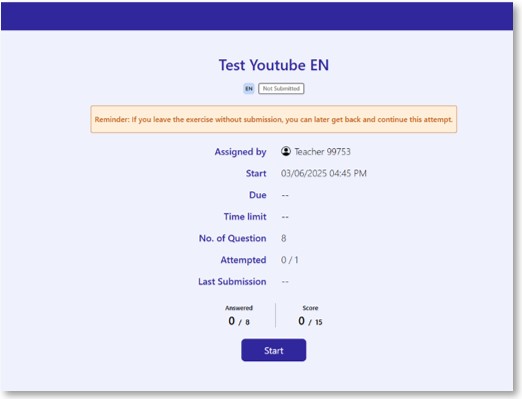
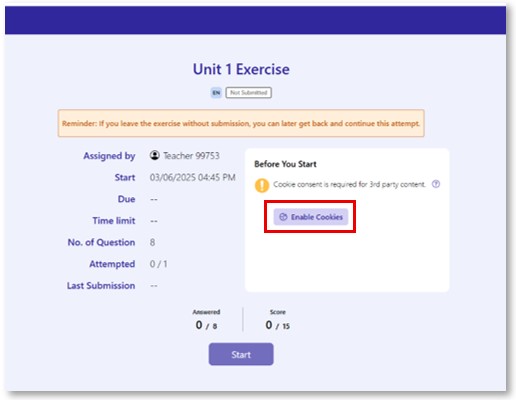
1. Before entering the exercise, you can click ‘Enable Cookies’ on the start page to modify the cookies settings.

 
2. In the ‘Cookie Consent Management’ window, enable ‘Targeting Cookies’.

 
3. After enabled cookies successfully, you can enter the exercise normally.